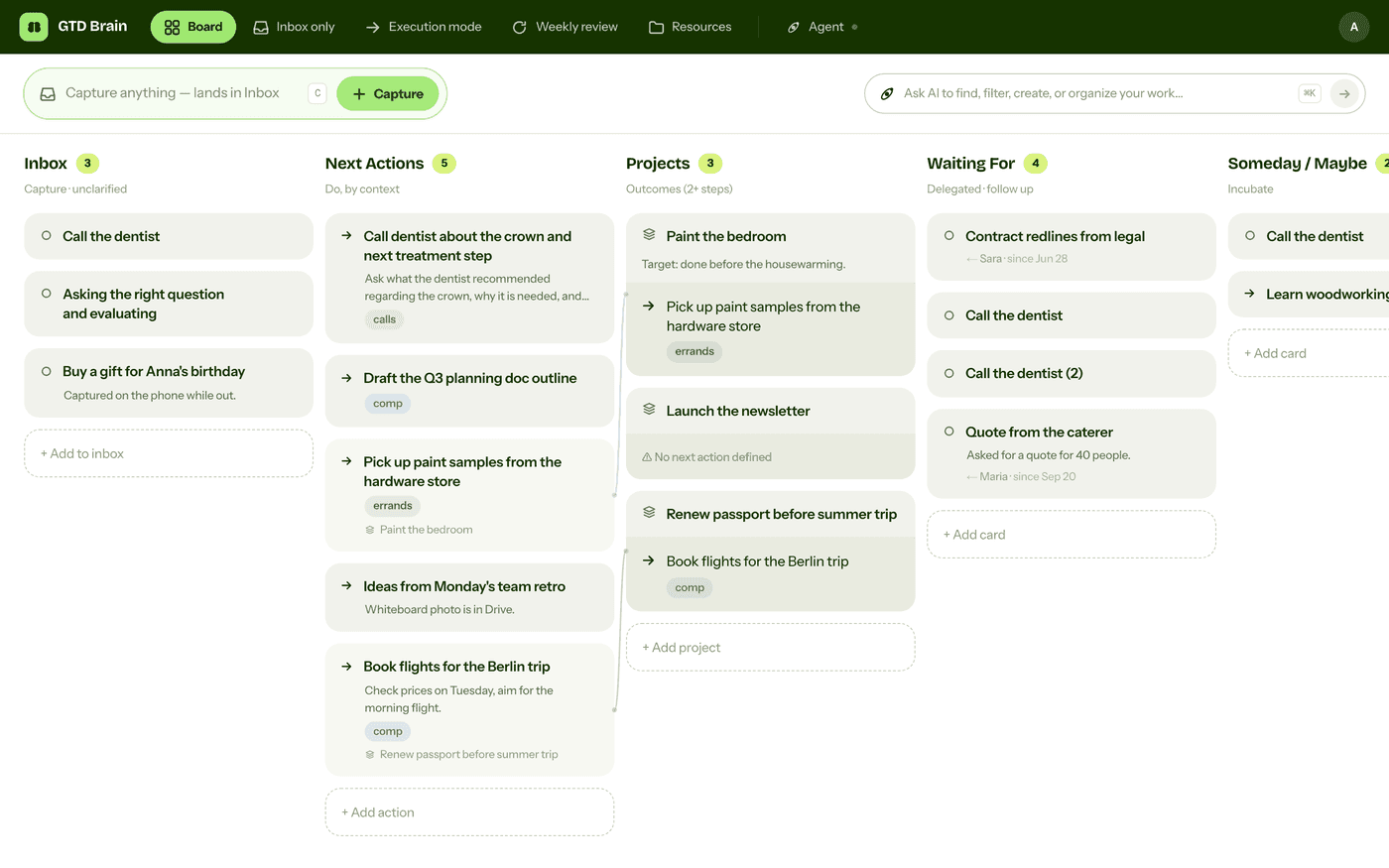
How to do GTD in Cursor (Getting Things Done from your editor)
Connect Cursor to GTD Brain, a GTD (Getting Things Done) board, from cursor.directory or with three lines of mcp.json, then capture TODO comments, ask for next actions and run the weekly review from the agent chat, with screenshots.
Start free for a month →No charge for your first month · Cancel anytime
On this page
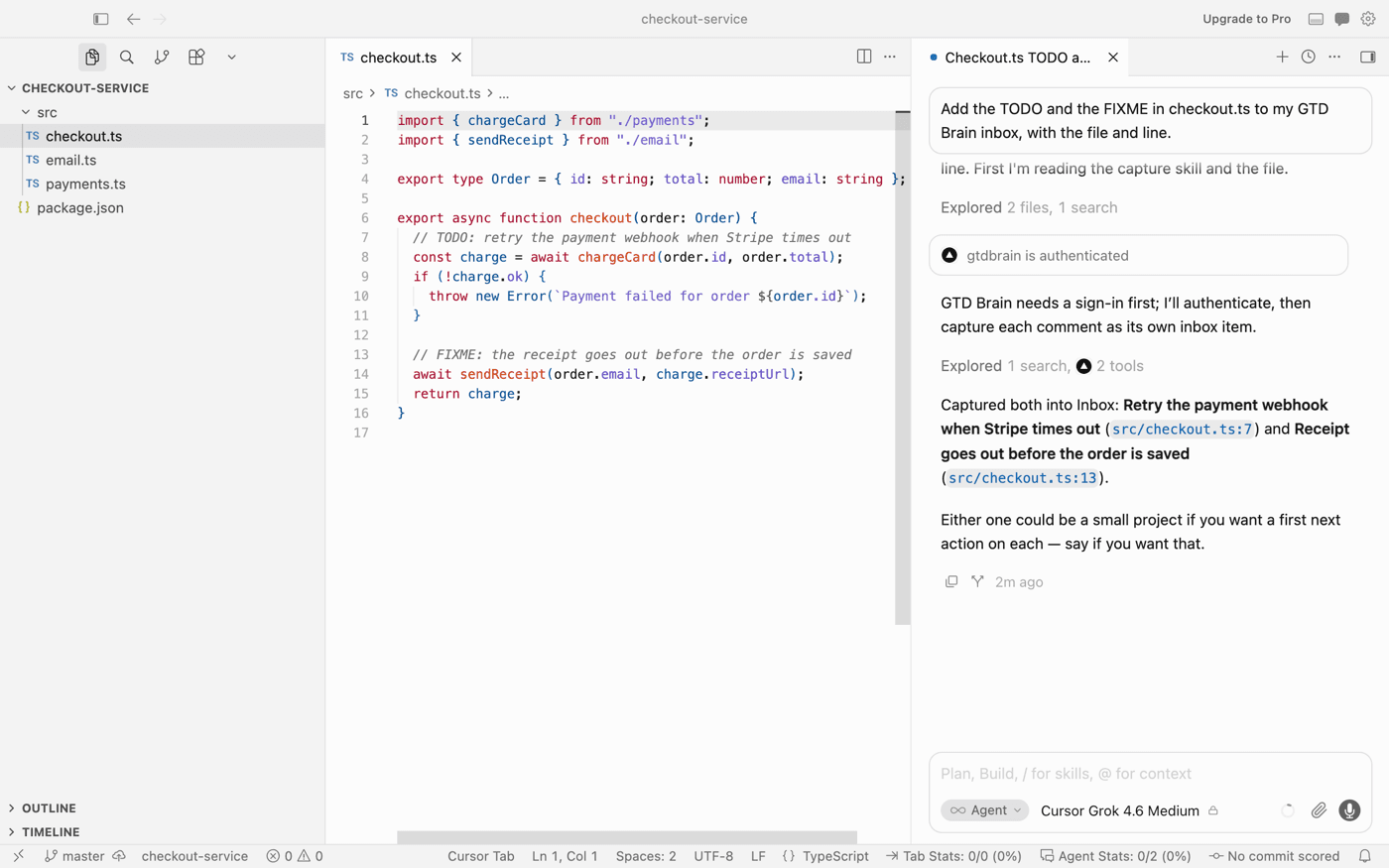
Half of what you need to remember turns up while you code: a TODO you just wrote, or a bug you promised to look at. Cursor’s agent can catch those in one sentence, but it has nowhere to keep them. Connect it to GTD Brain, a GTD (Getting Things Done) board, and they go straight to your Inbox:
Step 1: add GTD Brain to Cursor
The quickest way is the GTD Brain page on cursor.directory: click Add to Cursor and confirm in Cursor. To do it by hand, open Customize, then MCPs, New MCP Server, and choose User. Cursor opens ~/.cursor/mcp.json; paste this and save:
{ "mcpServers": { "gtdbrain": { "url": "https://mcp.gtdbrain.com/api/gtdbrain/v1/mcp" } } }A file in ~/.cursor/ gives you the board in every project. The same lines in .cursor/mcp.json inside a project give it to that project only.
Step 2: sign in
The first time the agent needs the board, the chat asks you to connect GTD Brain. Click Authenticate. A browser tab opens on GTD Brain’s sign-in page: enter your email and the code we send you, then click Allow. There is no API key, and Cursor stays signed in after that.
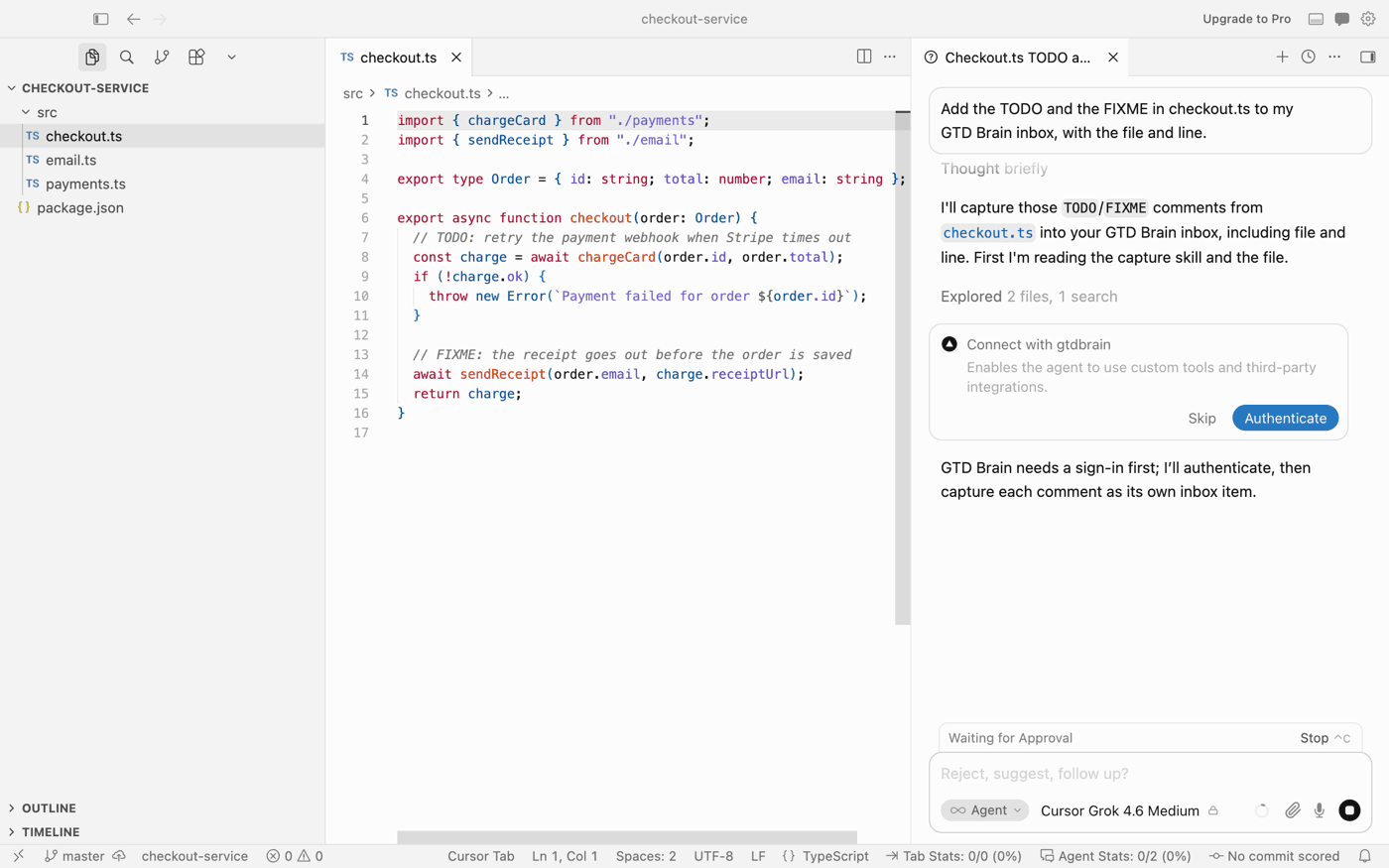
Using the board from Cursor needs a GTD Brain membership. The yearly plan starts with a free month.
Step 3: capture, clarify, review
To capture, tell the agent what is on your mind, or ask it to add the TODO comments in the open file, as in the first screenshot. To decide what to do next, ask for your next actions. The agent reads them from the board, not from the chat.
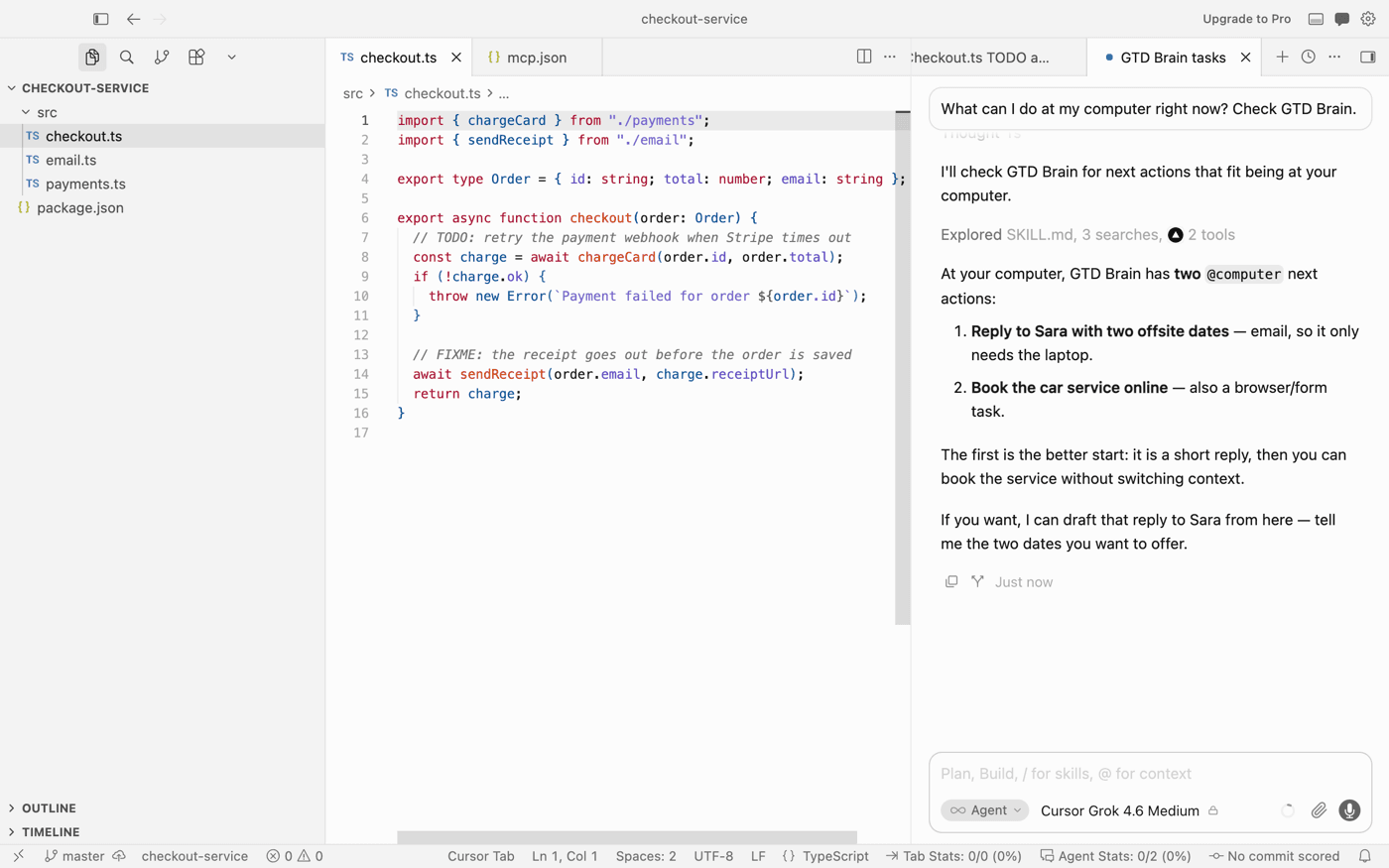
Once a day, ask: “Go through my GTD Brain inbox one item at a time and ask me what each one is.” On Friday, ask: “Run my weekly review, one list at a time, and wait for my answer.” The agent moves the cards as you decide, and Waiting For keeps who and since when.
More
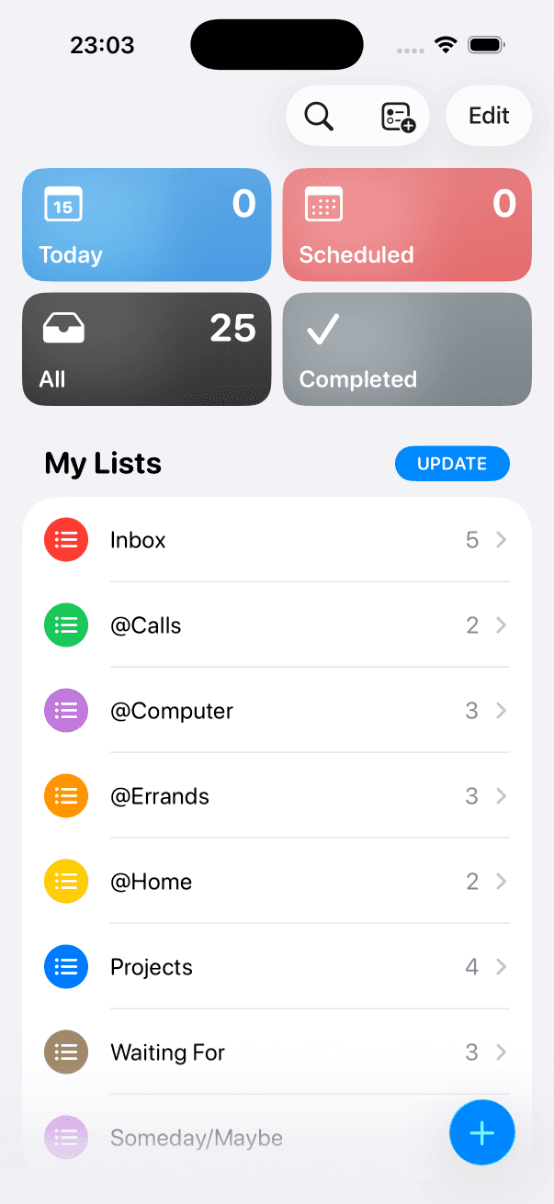
Troubleshooting is on the Cursor connect guide. If you also work in a terminal, GTD in Claude Code uses the same board. It is also on the web, iPhone and Android, and in ChatGPT and the other assistant connections.
Questions people ask
Can you do GTD (Getting Things Done) in Cursor?
Yes. Cursor's agent is quick for capture, catching the TODO you just wrote without leaving the editor, and good at clarifying an inbox and running a weekly review, but a chat forgets everything when you close it. Connect it to a GTD board such as GTD Brain and every chat reads and updates the same Inbox, Next Actions, Projects and Waiting For lists.
How do you connect Cursor to GTD Brain?
Click Add to Cursor on the GTD Brain page at cursor.directory, or open Customize, MCPs, New MCP Server, choose User and paste the config below into ~/.cursor/mcp.json. The first time the agent needs the board, click Authenticate, enter your email and the code we send you, and click Allow. There is no API key.
{ "mcpServers": { "gtdbrain": { "url": "https://mcp.gtdbrain.com/api/gtdbrain/v1/mcp" } } }Can Cursor turn TODO comments into GTD tasks?
Yes. With GTD Brain connected, ask the agent to add the TODO and FIXME comments in the open file to your GTD Brain inbox. Each one becomes an Inbox card with the file and line, on the same board as the web, iPhone and Android apps, so the reminder no longer depends on opening that file again.
Do I need a paid plan to use GTD Brain in Cursor?
Using the GTD Brain board from Cursor needs a GTD Brain membership, the same one that covers the web, iPhone and Android apps. The yearly plan starts with a free month. Cursor's free plan is enough on the Cursor side: the connection is a standard MCP server with an email-code sign-in.
Start free for a month →No charge for your first month · Cancel anytime