What is the Inbox in GTD? How to capture and empty it
The Inbox is the first step of Getting Things Done: one place for every task, idea and worry, sorted later. What belongs in it, how the daily clarify step empties it, and the same Inbox on the web, Android, iPhone, ChatGPT and Claude.
Start free for a month →No charge for your first month · Cancel anytime
On this page
In GTD (Getting Things Done), the Inbox is the one place where everything lands before you decide what it means. A call you have to make, a bill, a gift idea, a half-formed thought about work: you write it down and drop it in the Inbox without sorting it. Later, usually once a day, you go through it from the top, decide what each item is, and move it out. When you finish, the Inbox is empty again. You don't work from it. It only holds things until you have time to think about them.
Why GTD starts with an inbox
David Allen's argument is that your head is a bad place to keep things. It reminds you about the printer ink at 2am and forgets the tax deadline. Each open loop you carry in memory costs a little attention, even when you aren't thinking about it. The Inbox gives every one of those thoughts somewhere to go. Once a thing is written down, and you trust that you'll look at it, you can stop holding it in your head.
That only works if you capture everything: big or small, work or personal, clear or vague. “Mum's birthday” goes in, and so does “rethink the pricing page”. It also only works if capture is fast, so you don't sort while you capture. Writing the item down should take a few seconds. Deciding which list it belongs on is a separate step.
What goes in the Inbox
Anything that has your attention and isn't already on a list. For example:
- “Call the plumber about the kitchen tap”
- “Gift ideas for Leo”
- “Team offsite in spring?”
- A photo of a parking fine
- An email you need to answer but can't right now
Items can be messy. “Passport” is a fine capture. When you clarify it, you work out that it means “check the expiry date and book a renewal appointment”.
What the Inbox is for, and what it isn't
If you work straight from the Inbox, you end up rereading the same vague items and doing the easy ones. Nothing should live there for weeks either, because an Inbox you never empty stops feeling safe to capture into. And GTD says to have as few inboxes as you can get away with. Email, a paper tray and a notes app are all inboxes, and each extra one is another place to check.
Emptying the Inbox: the clarify step
Once a day, take each item from the top and ask whether it's actionable.
- If not, delete it, move it to Someday/Maybe, or keep it as Reference.
- If it takes less than two minutes, do it now.
- If someone else should do it, hand it off and put it in Waiting For.
- If it's a single step, write the next physical action (“Call the dentist to book a checkup”) and put it in Next Actions with a context such as @calls.
- If it needs several steps, it's a project. Put the outcome in Projects and its first step in Next Actions.
Don't put anything back in the Inbox. Every item leaves with a decision, and when you reach the bottom the Inbox is empty. In GTD that is what “inbox zero” means. The weekly review starts the same way: getting the Inbox to zero is its first step.
The Inbox in GTD Brain
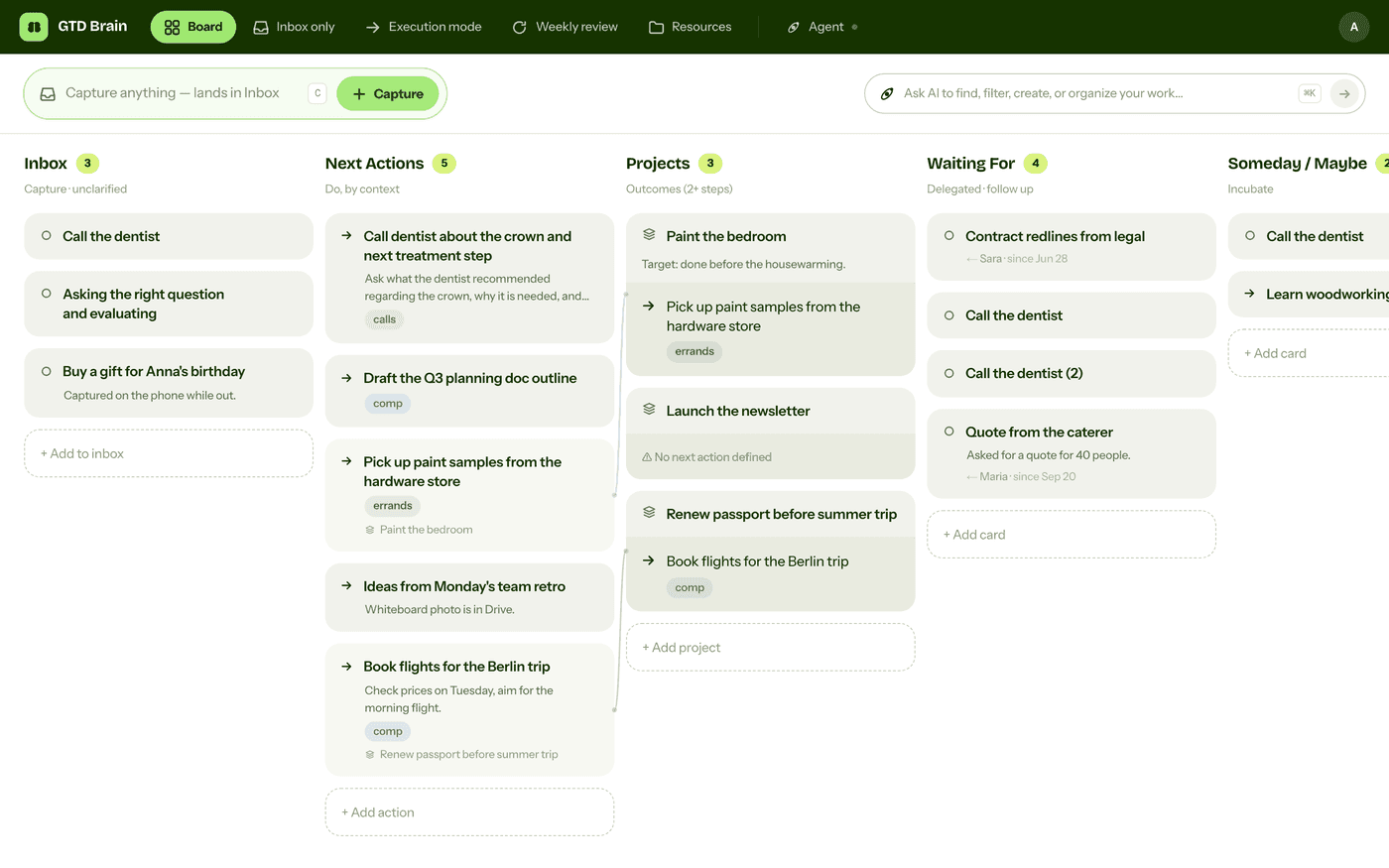
GTD Brain is a GTD board, and the Inbox is its first column. You can capture into that same Inbox from wherever you are, then clarify everything in one place.
On the web
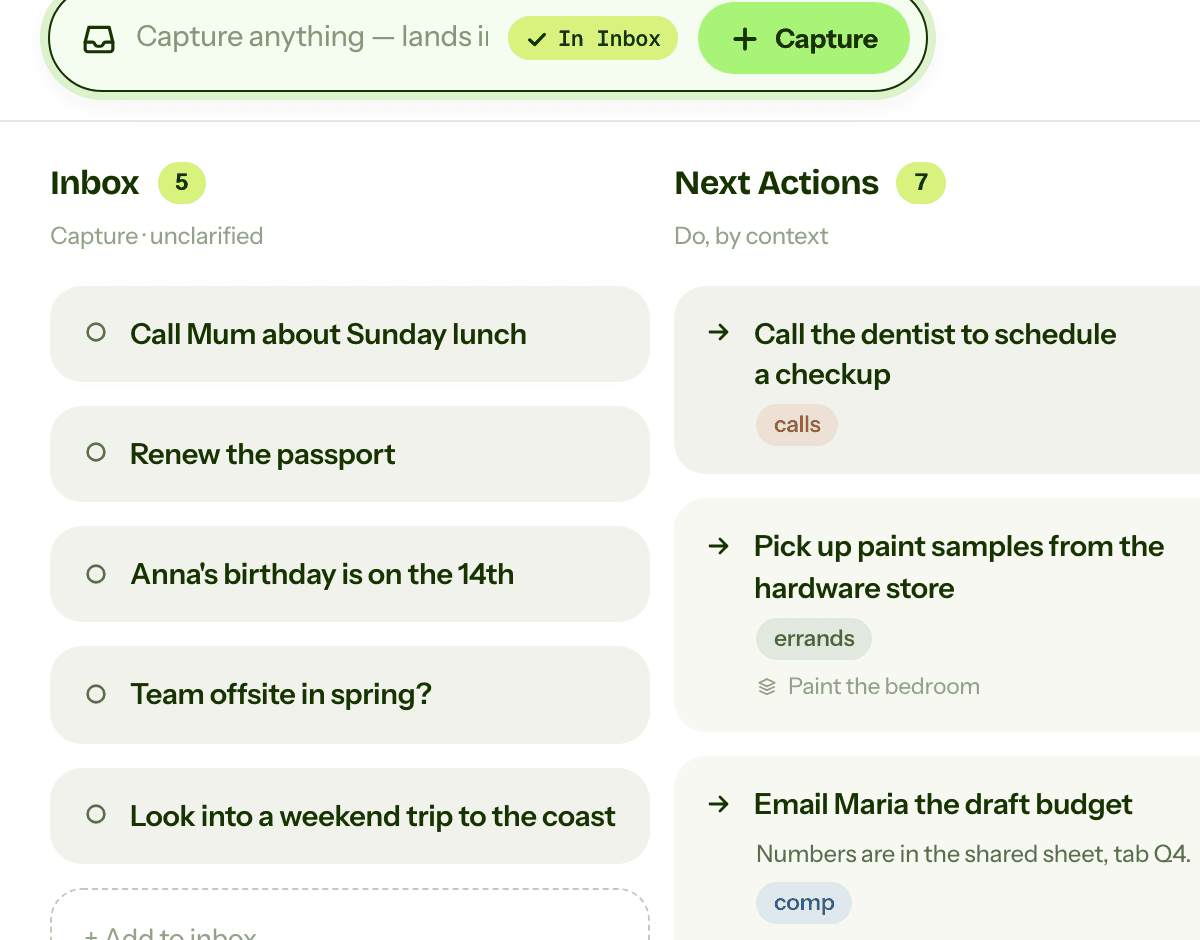
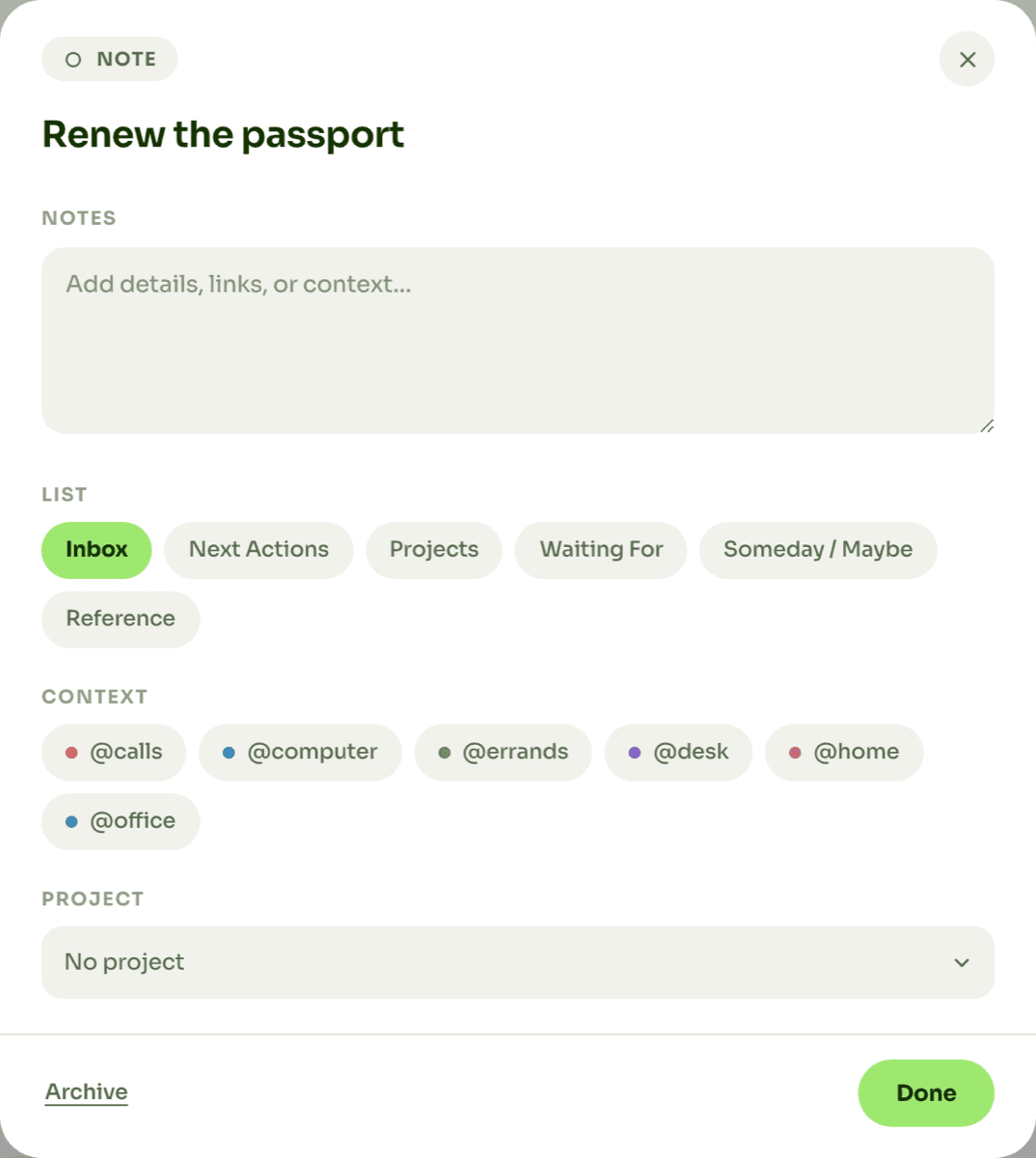
The capture box sits at the top of the board. Press C, type, and the card lands at the top of the Inbox. Click a card to open it and pick a list, a context and a project. That's the clarify step.
On Android and iPhone
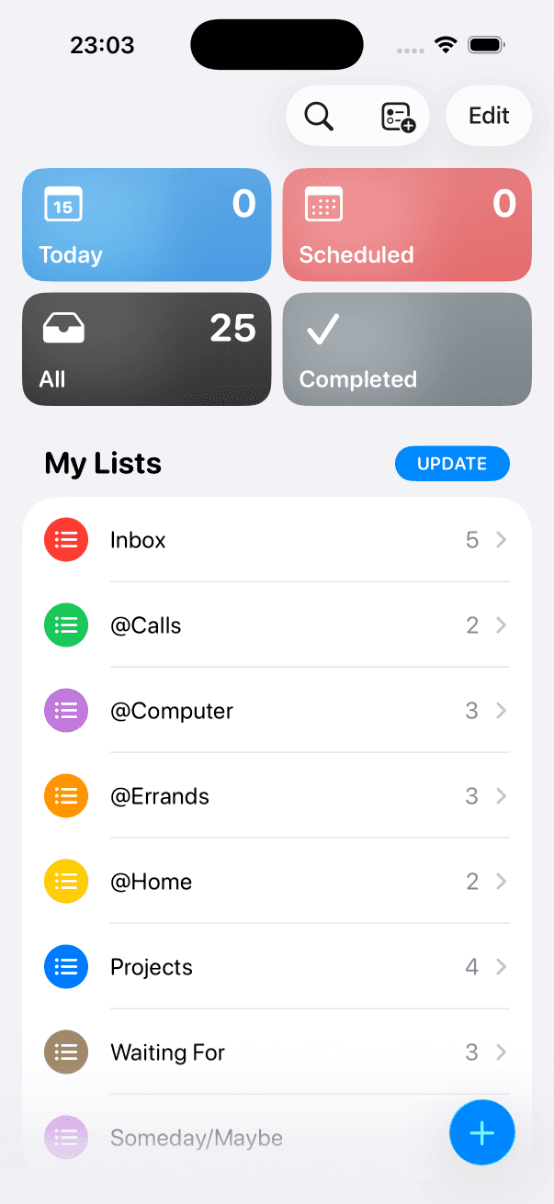
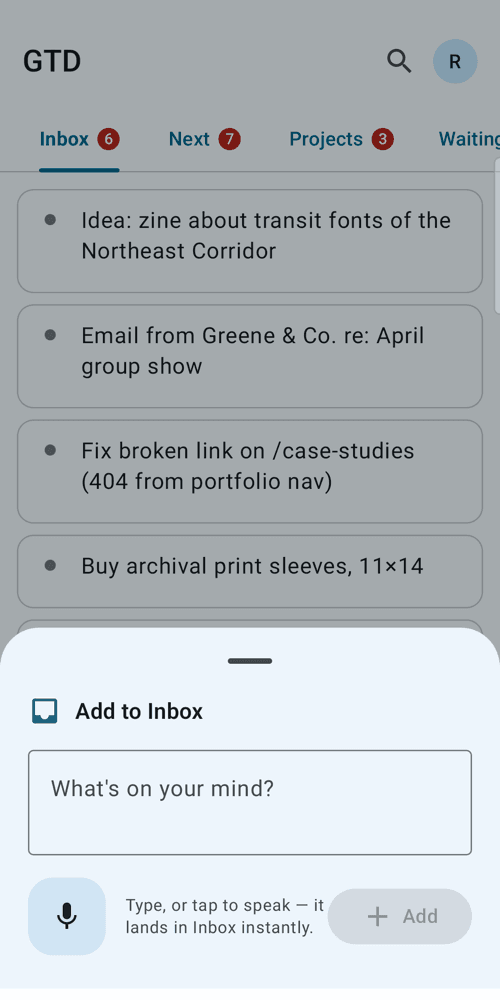
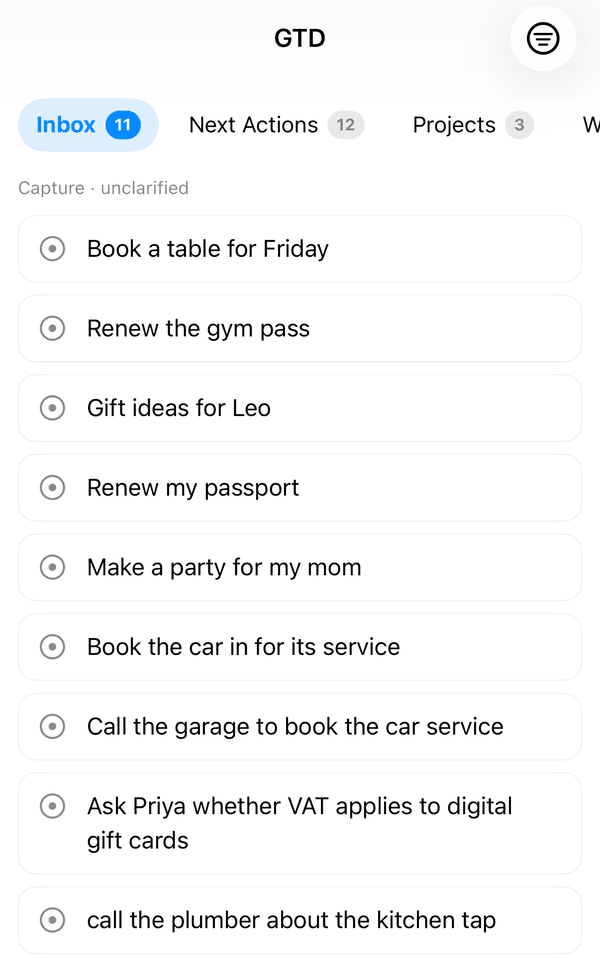
On Android, tap + and type, or tap the mic and say it. On the iPhone, the Inbox is the first tab on the board, with a count of what is still waiting to be clarified, and the + button adds a card from anywhere in the app. Both go straight to the Inbox.
In ChatGPT
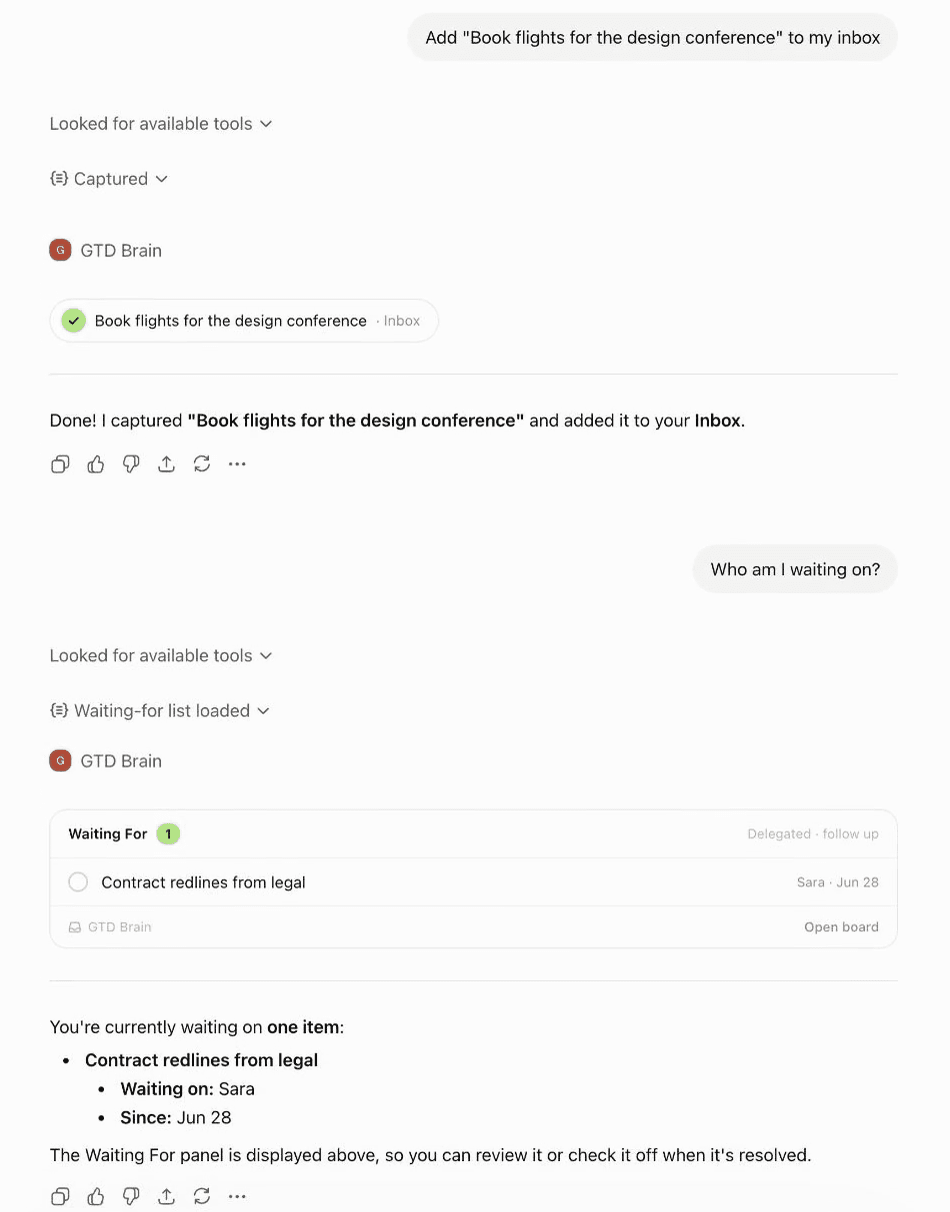
With the GTD Brain app connected, say “add book flights for the design conference to my inbox” in any chat. ChatGPT captures it and shows the card. The ChatGPT guide covers the setup.
In Claude
The same works in Claude once GTD Brain is added as a connector: one sentence in a chat, and the card is in your Inbox. The Claude guide shows how to connect it.
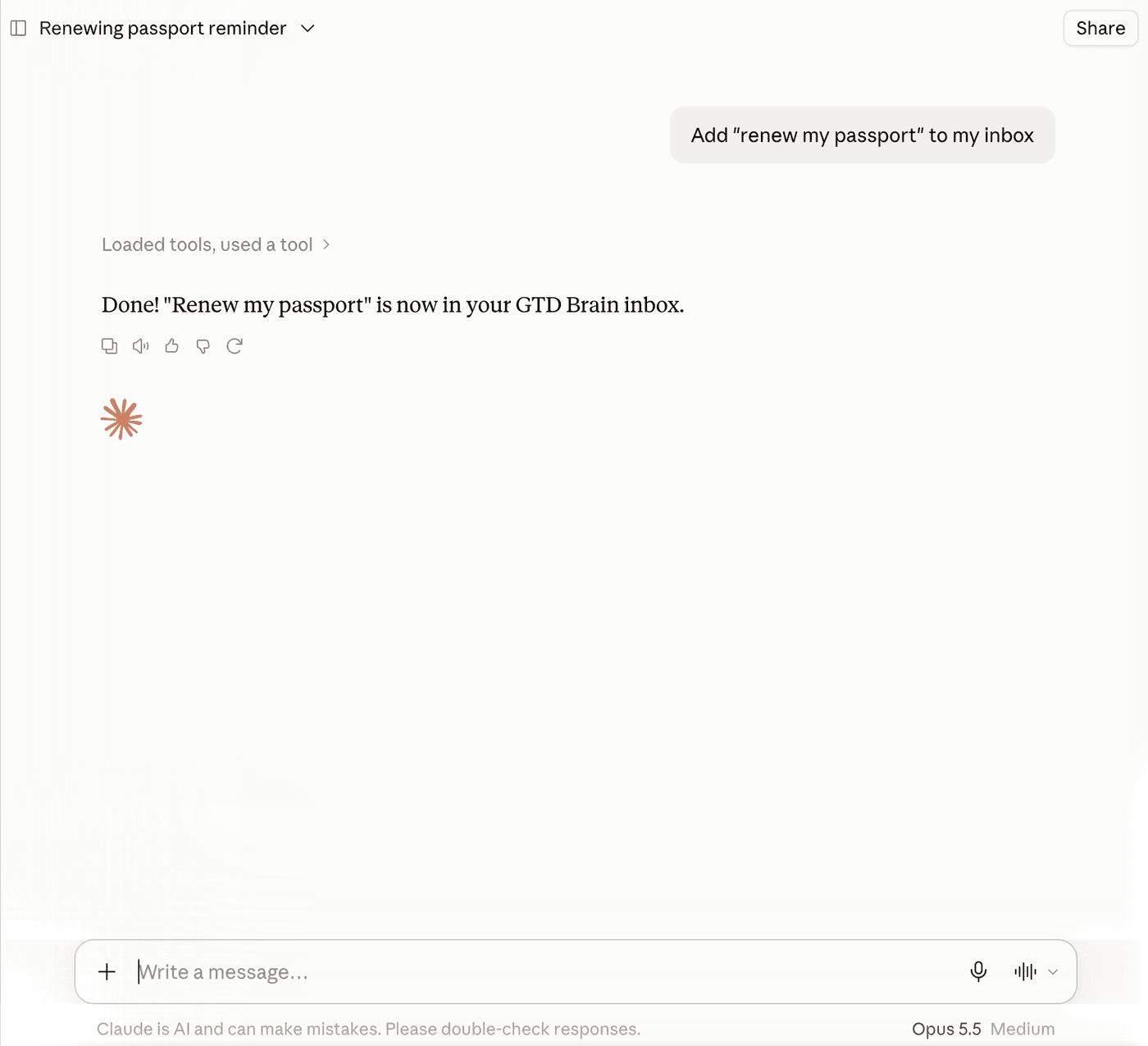
So the item you add from ChatGPT at your desk is on your phone when you clarify the Inbox on the train. If clarifying is the step you keep skipping, you can also ask the board's agent to go through the Inbox with you and turn each capture into a next action or a project.
If you want the method without the workarounds
Everything above is real GTD, and plenty of people run it in a notes app for years. I built GTD Brain for the parts that keep breaking: it is a board with the GTD lists built in (Inbox, Next Actions with contexts, Projects, Waiting For, Someday), a built-in agent that clarifies your inbox into next actions, and a guided weekly review that walks you through the whole board card by card. The same board is on the iPhone app, the Android app and the web, and you can talk to it from ChatGPT, Claude and other assistants through the assistant connections.
You sign in with an email code, no password. The yearly plan starts with a free month and you can cancel before it bills. If you have read this far, you already know how the lists work, so the setup takes about two minutes: sign in at gtdbrain.com and do your first brain dump into the inbox.
Questions people ask
What is the Inbox in GTD?
The Inbox is the first step of Getting Things Done: one place where you capture every task, idea and commitment as it comes up, without sorting it. You empty it regularly, usually once a day, by deciding what each item is and moving it to Next Actions, Projects, Waiting For, Someday/Maybe or Reference, or deleting it.
How often should you empty your GTD inbox?
Once a day is a good habit, and at least once a week during the weekly review, whose first step is getting the Inbox to zero. Capturing only feels safe when you trust that you will look at what you captured soon, so an Inbox left for weeks stops working.
Should you work from your GTD inbox?
No. The Inbox holds items you have not thought through yet, so working from it means rereading vague notes and picking the easy ones. Clarify each item first into a concrete next action with a context, such as @calls or @errands, and then work from your Next Actions list.
How many inboxes should you have in GTD?
As few as you can get away with. Email, a paper tray and a notes app all count as inboxes, and each one is another place you have to check. Many people capture everything into one app's Inbox from every device they use, so there is only one list to empty each day.
Start free for a month →No charge for your first month · Cancel anytime