How to do GTD in IntelliJ (TODO filters, contexts, and the GTD Brain plugin for JetBrains IDEs)
A complete Getting Things Done setup inside IntelliJ IDEA, PyCharm, WebStorm and the other JetBrains IDEs, with screenshots: one text file and custom TODO patterns and filters for Inbox, Next Actions by context, Projects, Waiting For and Someday, capture in code comments, a daily clarify and a weekly review, then where a file in one project stops working and the GTD Brain plugin that puts a board in a side panel.
Start free for a month →No charge for your first month · Cancel anytime
On this page
The short version: IntelliJ IDEA can already hold a working Getting Things Done system, and so can PyCharm, WebStorm and every other JetBrains IDE, because they all share the same TODO tool window. Put your lists in one plain text file, one keyword per list (INBOX, @calls, @computer, WAITING, PROJECT, SOMEDAY), teach the IDE those keywords as TODO patterns, and add a filter per list. From then on the TODO window shows your next actions by context. It picks up lines from the file and // @computer comments you leave in code. That is the first half of this guide. The second half covers where a text file inside one project stops working, and the GTD Brain plugin, which gives the IDE a side panel on a board that your phone can also reach.
Step 1: one text file for your lists
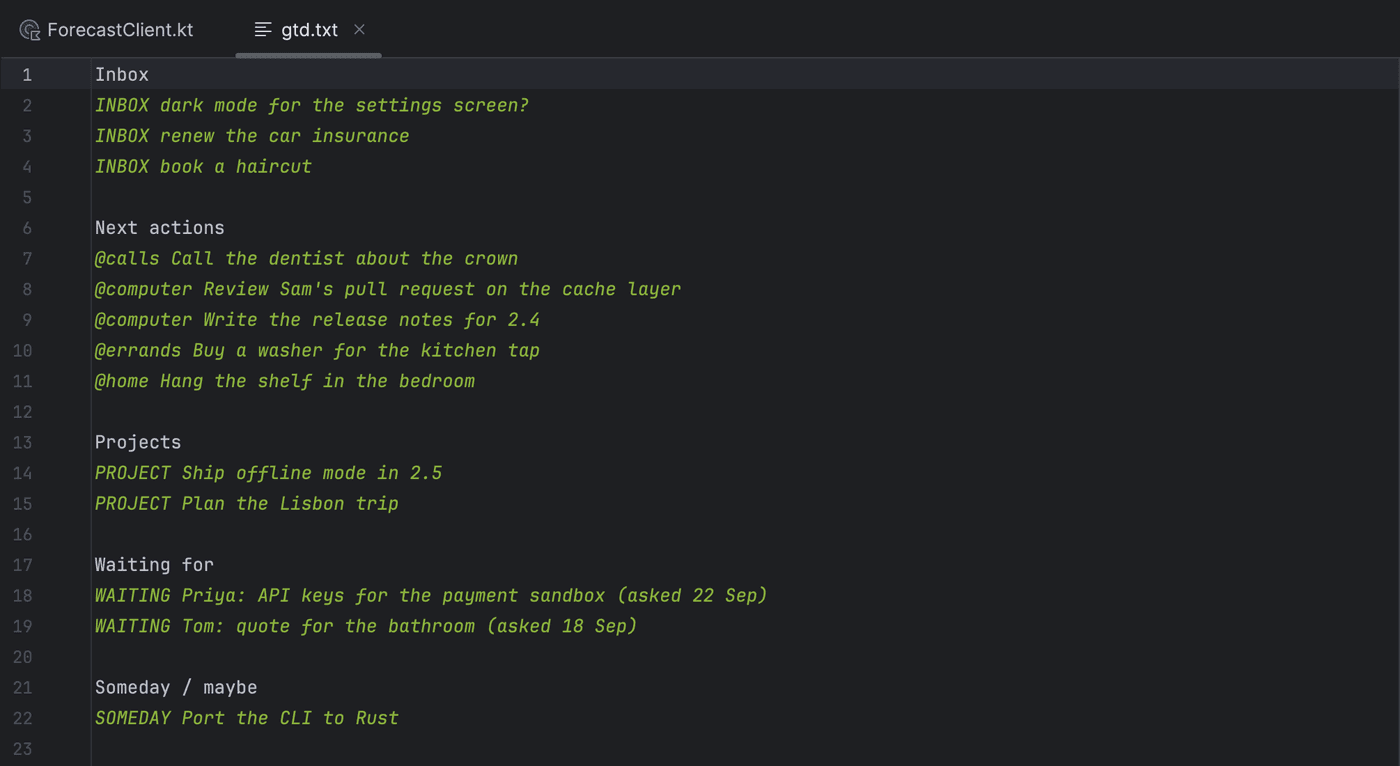
Make a file called gtd.txt in the project you open every day. Use a plain .txt, not Markdown: the TODO index reads plain text files and code comments, but it skips .md files, so a gtd.md would never show up in the TODO window. Every item is one line that starts with its list keyword:
INBOX renew the car insurance
@calls Call the dentist about the crown
@computer Review Sam's pull request on the cache layer
@errands Buy a washer for the kitchen tap
PROJECT Ship offline mode in 2.5
WAITING Priya: API keys for the payment sandbox (asked 22 Sep)
SOMEDAY Port the CLI to Rust
A next action starts with its context, so the context is also its list. A waiting-for line holds the person and the date you asked. A project line names the outcome, not the steps. Headings between the groups are for you; the IDE ignores lines without a keyword. If the project is a shared repository, list the file in .git/info/exclude so your dentist appointment never ends up in a commit.
Step 2: turn the keywords into TODO patterns and filters
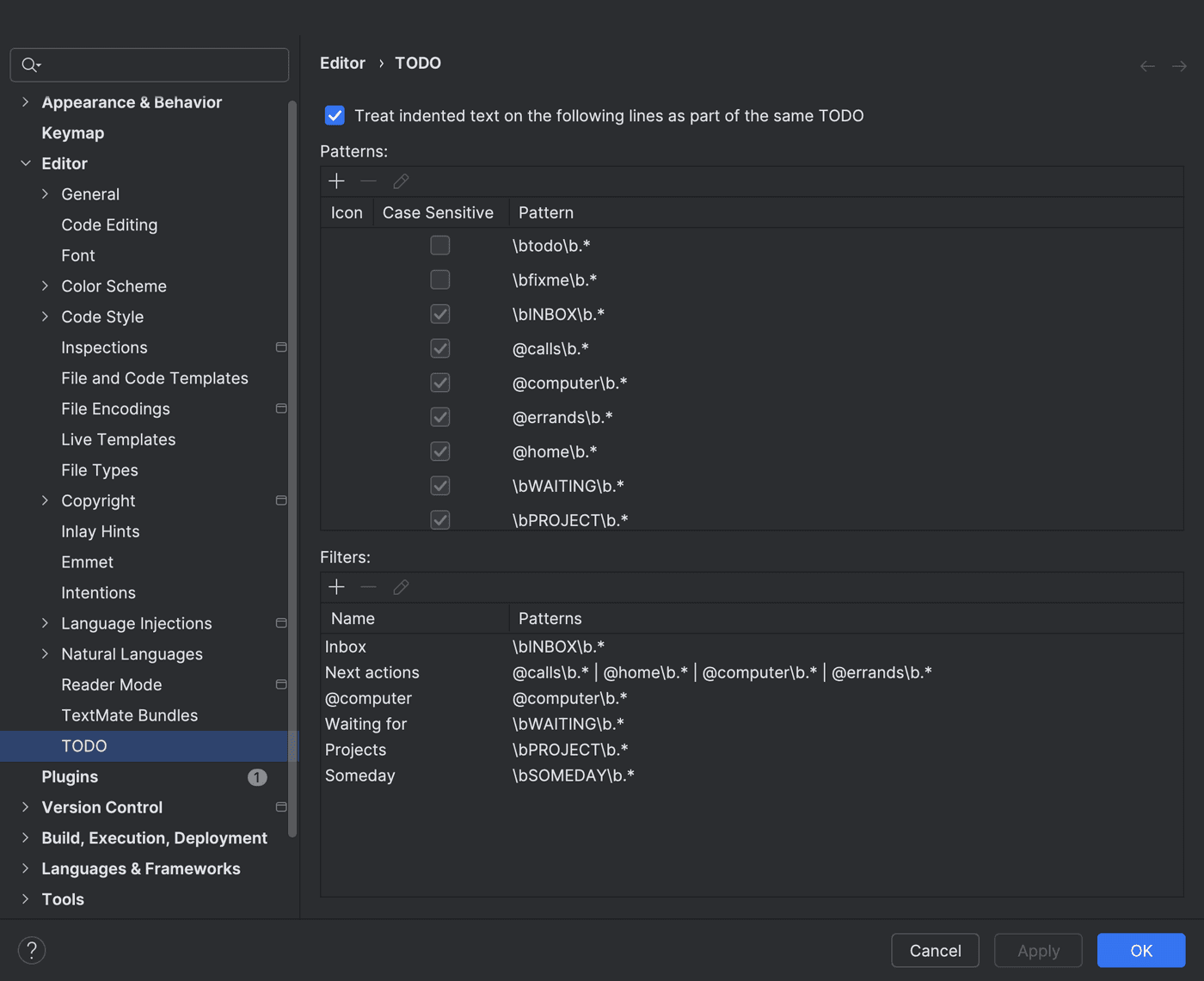
Open Settings, Editor, TODO. Under Patterns, add one pattern per keyword and tick Case Sensitive so that “inbox” in normal prose does not match: \bINBOX\b.*, @calls\b.*, @computer\b.*, @errands\b.*, @home\b.*, \bWAITING\b.*, \bPROJECT\b.* and \bSOMEDAY\b.*. Leave the built-in todo and fixme patterns alone.
Then, under Filters, make one filter per GTD list: Inbox (the INBOX pattern), Next actions (all four context patterns together), Waiting for, Projects and Someday. A filter per context, such as @computer on its own, is useful too, because that is the list you actually work from at the desk. These settings belong to the IDE, not the project, so they apply to every project you open in that IDE.
Step 3: capture in the file, or right in the code
Capture is typing a line. Keep gtd.txt open in a pinned tab, or reach it with Recent Files, and add an INBOXline for anything that comes up. Do not sort while you capture; “INBOX renew the car insurance” is enough.
A to-do app cannot do the next part: capture inside the code. When you see something that needs doing while you are in a file, write it as a comment with a context: // @computer retry with backoff when the forecast API times out. It stays next to the code it is about, and the TODO window lists it next to the lines from gtd.txt. Use this for work that belongs to the code. Personal errands in a shared codebase get committed, reviewed and read by your colleagues.
Step 4: the TODO window is your Next Actions list
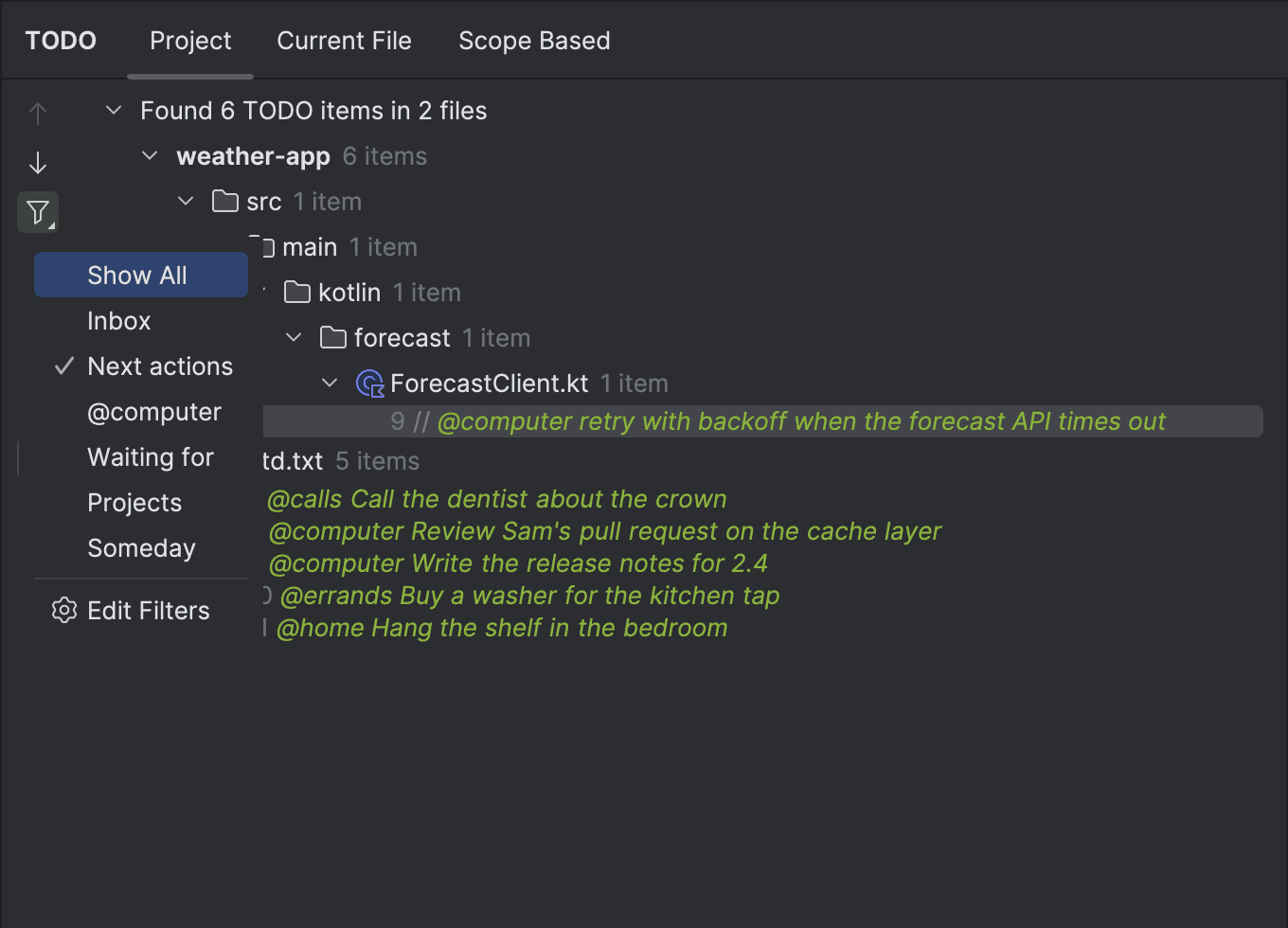
Open the TODO tool window and click the filter icon on its left toolbar. Your filters are in the menu under Show All. Pick Next actions and the tree shows every context line in the project, grouped by file: the five in gtd.txt and the comment in ForecastClient.kt. Pick @computer when you sit down with twenty minutes.
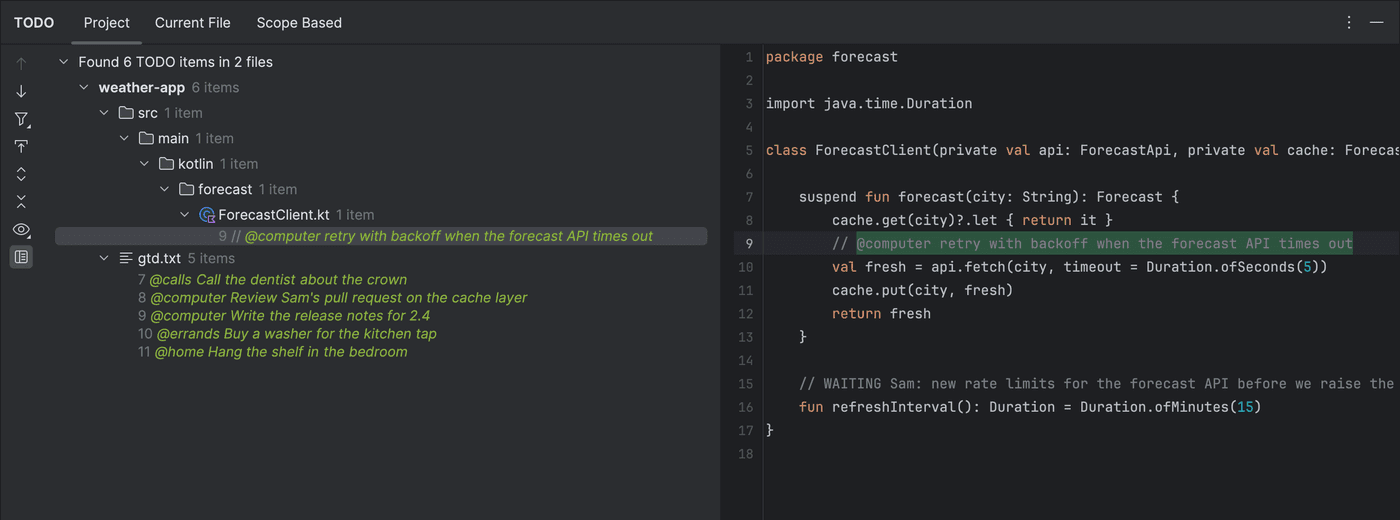
Double-click a line to jump to it. There is no checkbox, so finishing an action means deleting its line, or its comment once the code change is in. The Current File tab does the same for the open file only, which helps during a code review.
Step 5: projects, with Tasks & Contexts for the code ones
A PROJECT line names an outcome that takes more than one step, and every project needs at least one context line that moves it forward. Nothing in the IDE checks that, so the weekly review has to.
For projects that are code, IntelliJ has a second feature that helps. Tools, Tasks & Contexts, Open Task creates a named task, “Ship offline mode” for example. The IDE remembers which files you had open for it, and switching to another task restores that task’s set instead. In a project with version control it can also create a changelist or a branch for the task. It does nothing for GTD as such, but it makes picking a code project back up after the weekly review much faster.
Step 6: waiting for, a daily clarify and the weekly review
When you hand something off, write a WAITING line with the name and the date: WAITING Priya: API keys for the payment sandbox (asked 22 Sep). The Waiting for filter lists them, and the dates show which ones need a nudge.
Once a day, open the Inbox filter and go through it top to bottom. Rewrite each line as a next action with a context, a PROJECT line plus its first action, a WAITING line or a SOMEDAY line, or delete it. The filter should be empty when you finish.
Once a week, go through the filters in order. Empty Inbox. Read Projects and make sure each has a next action. Read Waiting for and chase anything old. Read Next actions and delete what is done or no longer matters. Read Someday and decide what to start. Block half an hour on Friday for it; the IDE will not remind you.
Where it breaks
The setup works for as long as your life fits in one project on one laptop. The TODO window only searches the open project, so gtd.txt in your main repository is invisible while you work in a second one. Either you copy the file around, or you keep a separate project just for the lists and switch windows to reach them. And the lists are only where the laptop is. The call you need to make comes up at the school gate, the errand at the shop, and the file is on a closed machine at home. GTD depends on everything going into one place, and the phone becomes a second inbox by lunchtime.
The file itself is thin. A deleted line is gone, so there is no record of what you finished. Nothing counts how long an inbox line has waited or flags a project with no next action. The weekly review is a routine you have to remember, and every check in it is you reading lines. Each of these is small on its own. Together they make the file easy to stop opening.
So the IDE is a very good place to capture and to see what to do at the computer, and a poor place to keep the only copy of your lists.
Step 7: the GTD Brain plugin for IntelliJ and other JetBrains IDEs
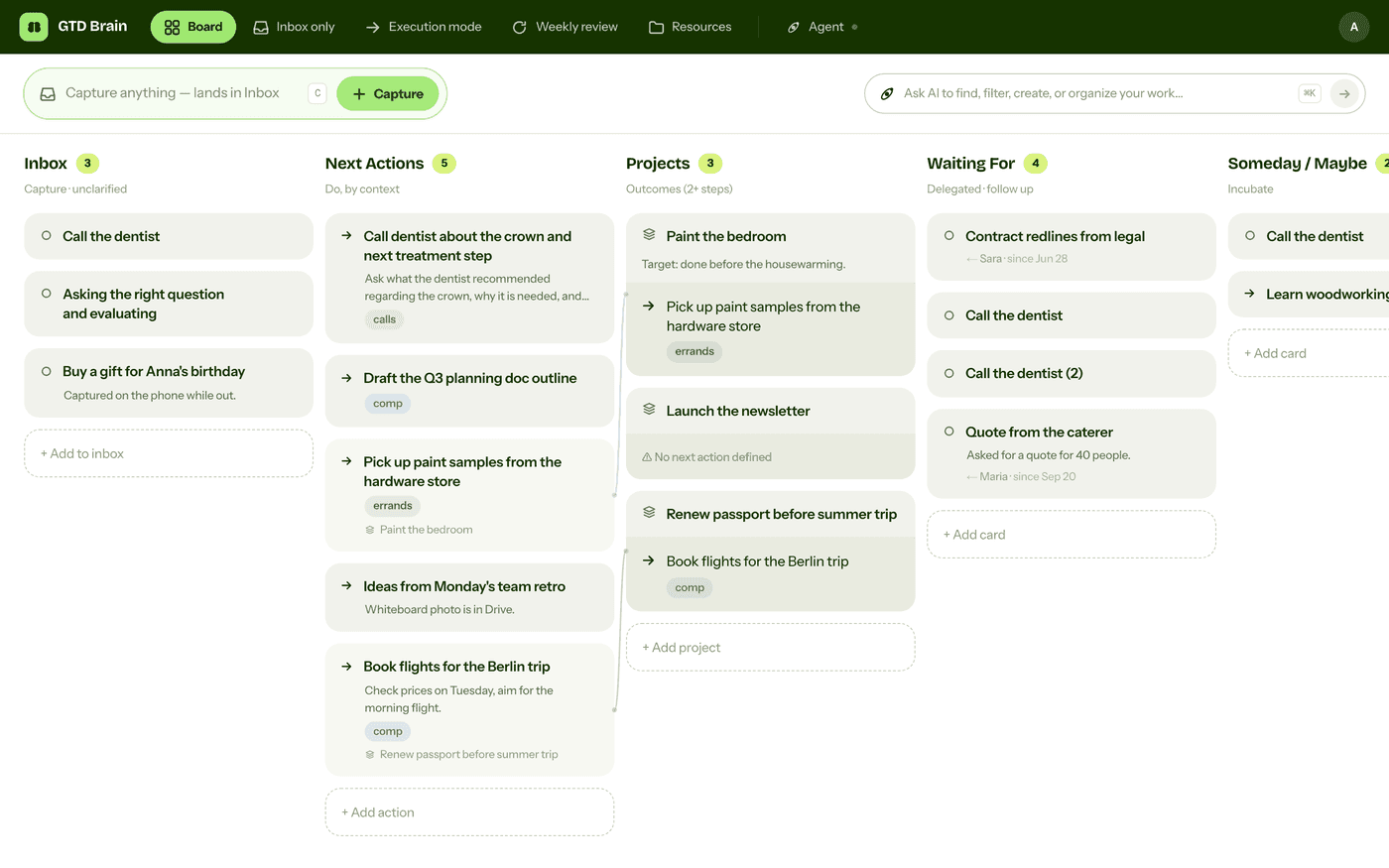
GTD Brain is a Getting Things Done board with the lists built in, and it has a plugin on the JetBrains Marketplace. Version 1.2.0 is live and works in IntelliJ IDEA (Community and Ultimate), PyCharm, WebStorm, GoLand, PhpStorm, RubyMine, CLion, Rider, RustRover, DataGrip and Android Studio, 2024.3 or newer. Open Settings, Plugins, the Marketplace tab, search for “GTD Brain” and click Install. The vendor is Minosin AB. The same plugin is on its Marketplace page if you would rather install it from the browser.
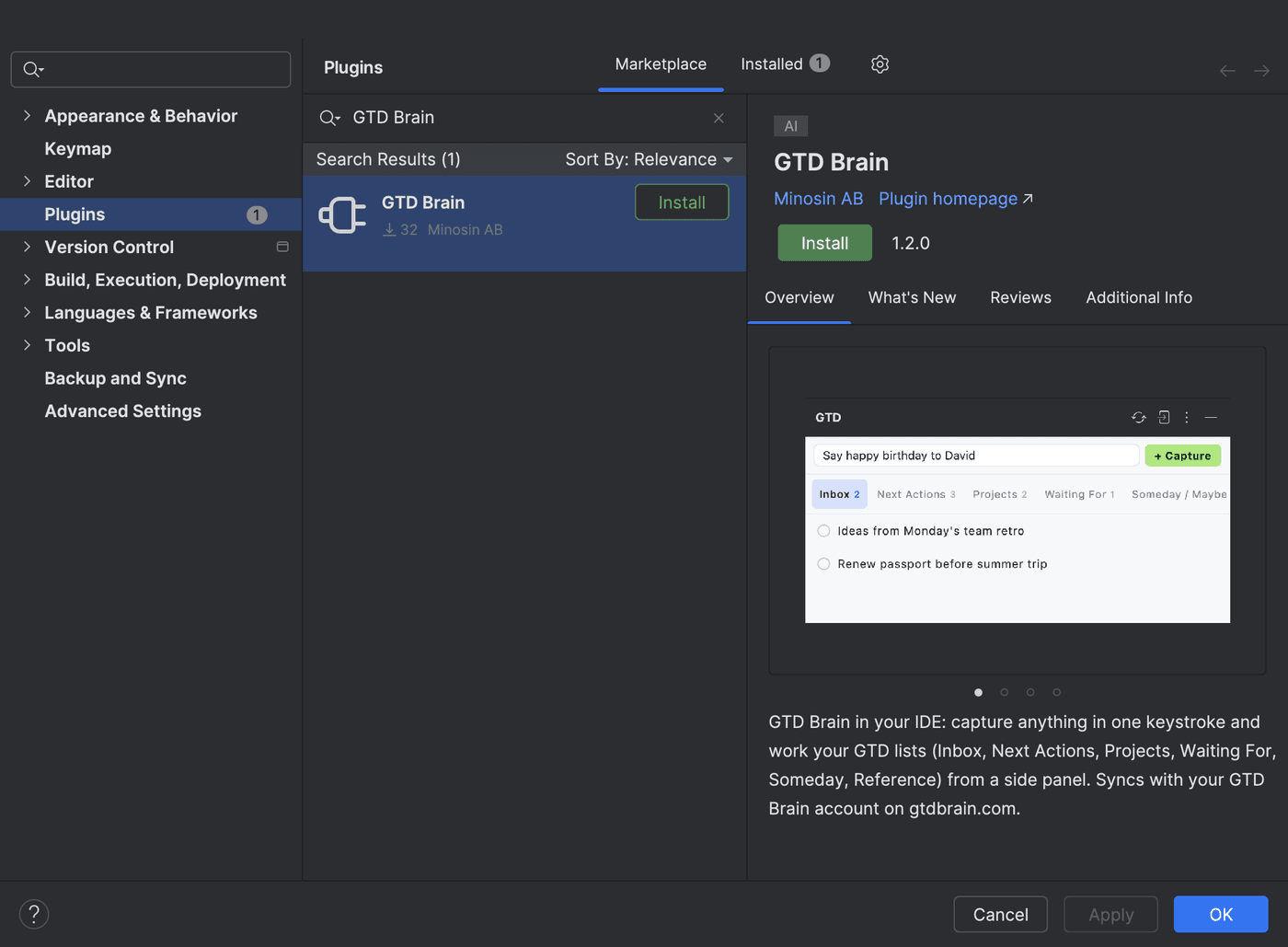
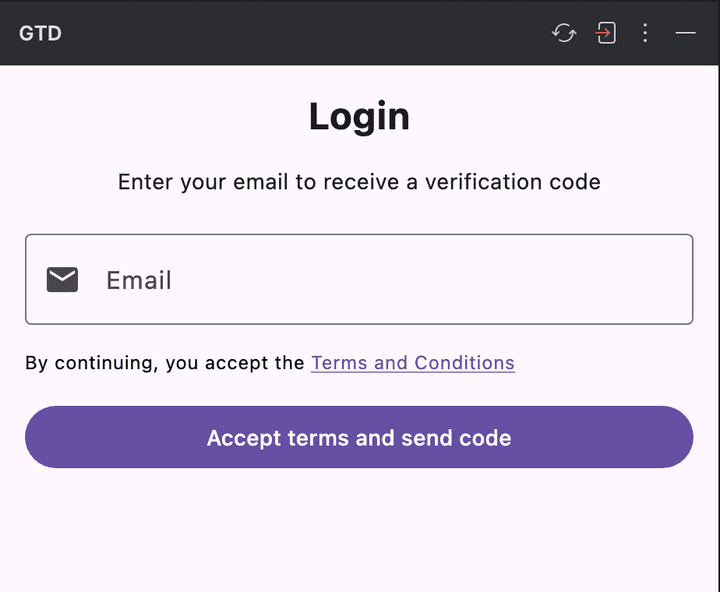
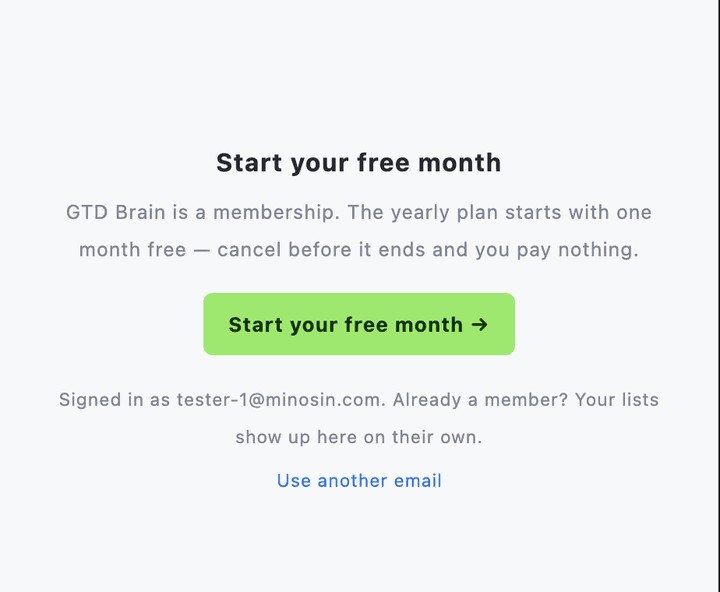
A GTD Brain panel appears on the right. Sign in with your email and the code we send you; there is no password. A new email creates an account with a small starter board. GTD Brain is a paid membership, so if you are not a member yet the panel shows a button that opens checkout in your browser. The yearly plan starts with a free month, and you can cancel before it bills. Once the membership is active, the panel loads your board by itself.
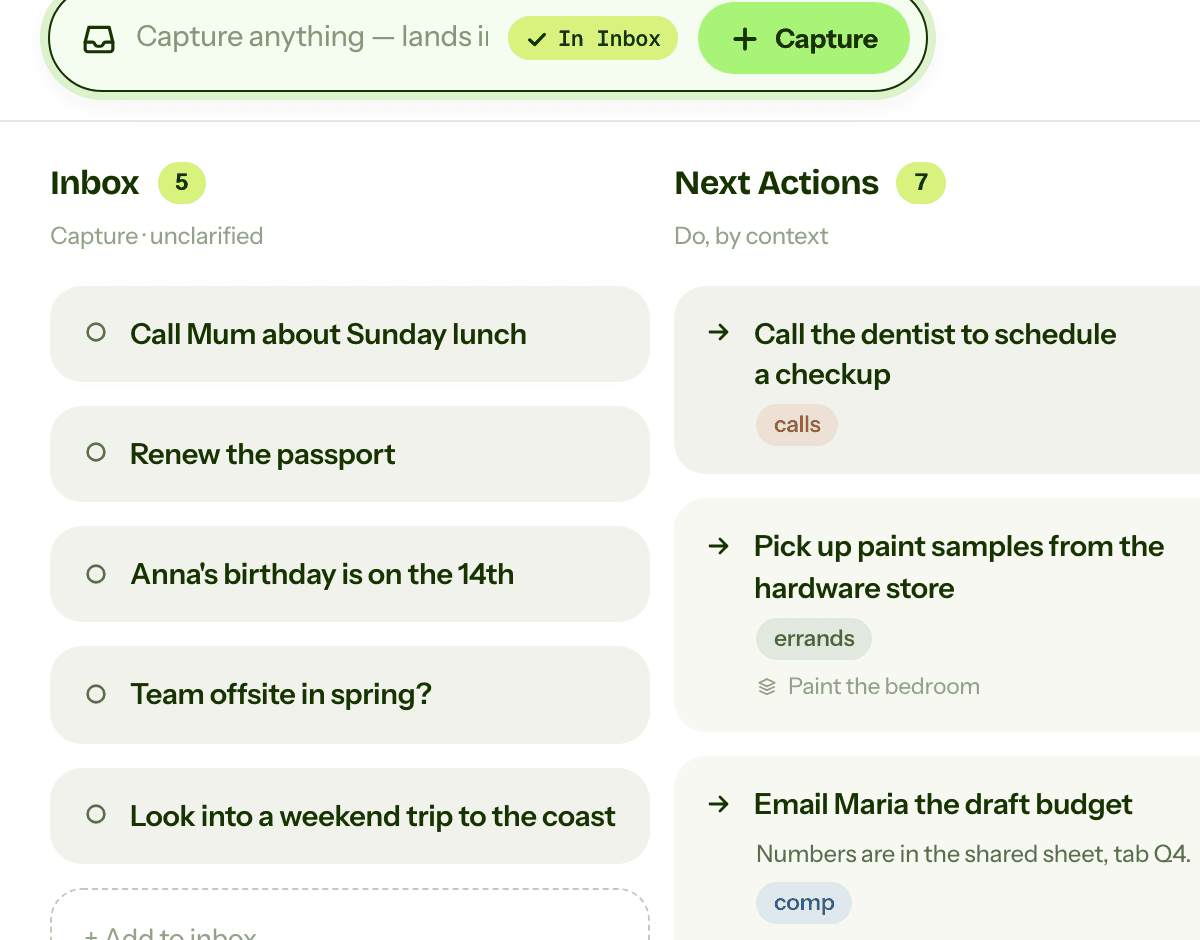
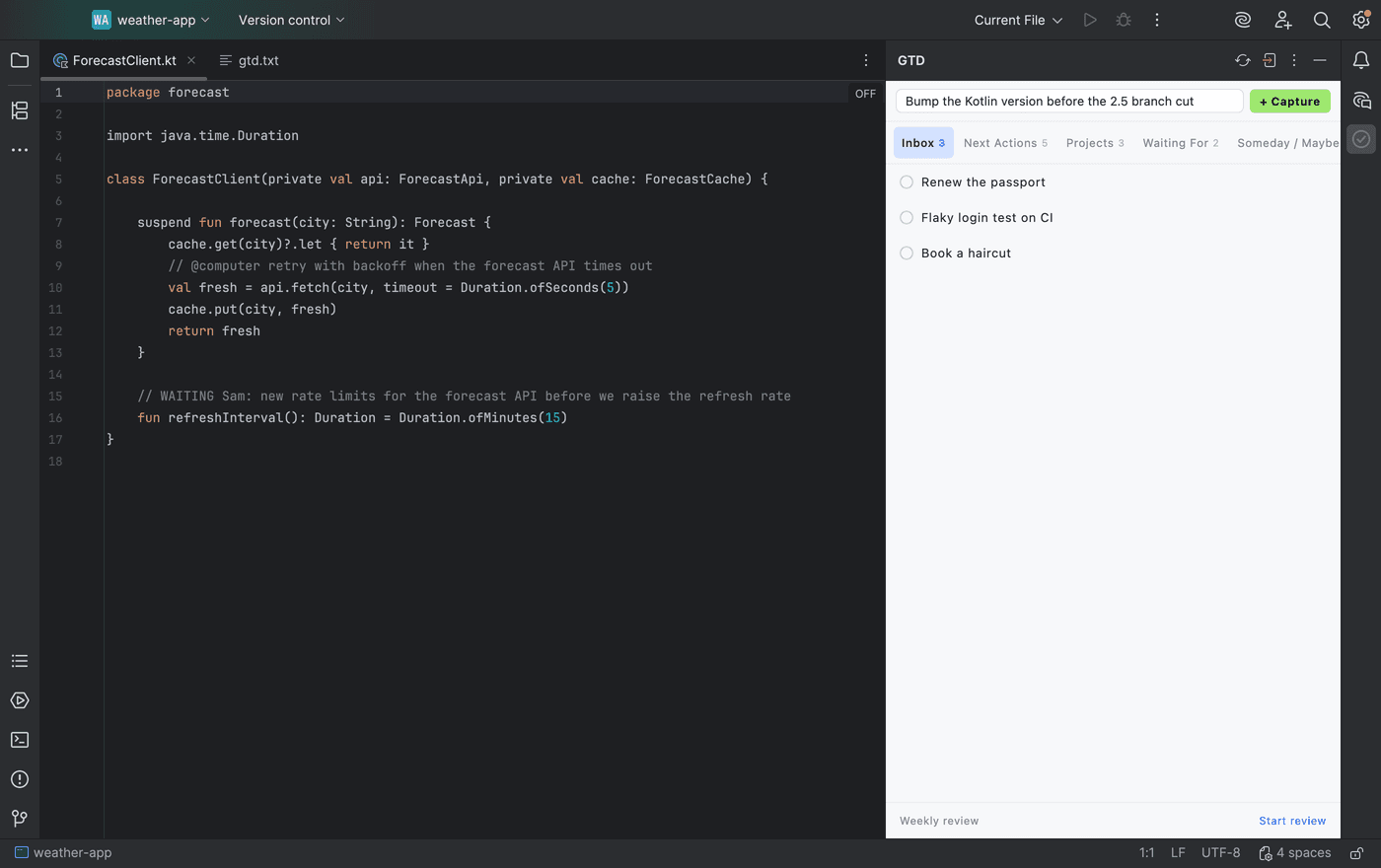
Capture works like the text file, only faster. Press the GTD: Capture shortcut, type the thought, press Enter, and it is a card at the top of your Inbox. The plugin suggests ⌘⇧C on macOS and Ctrl+Shift+C on Windows and Linux. If your keymap already uses that key, bind another one under Settings, Keymap; the action is also in the Tools menu.
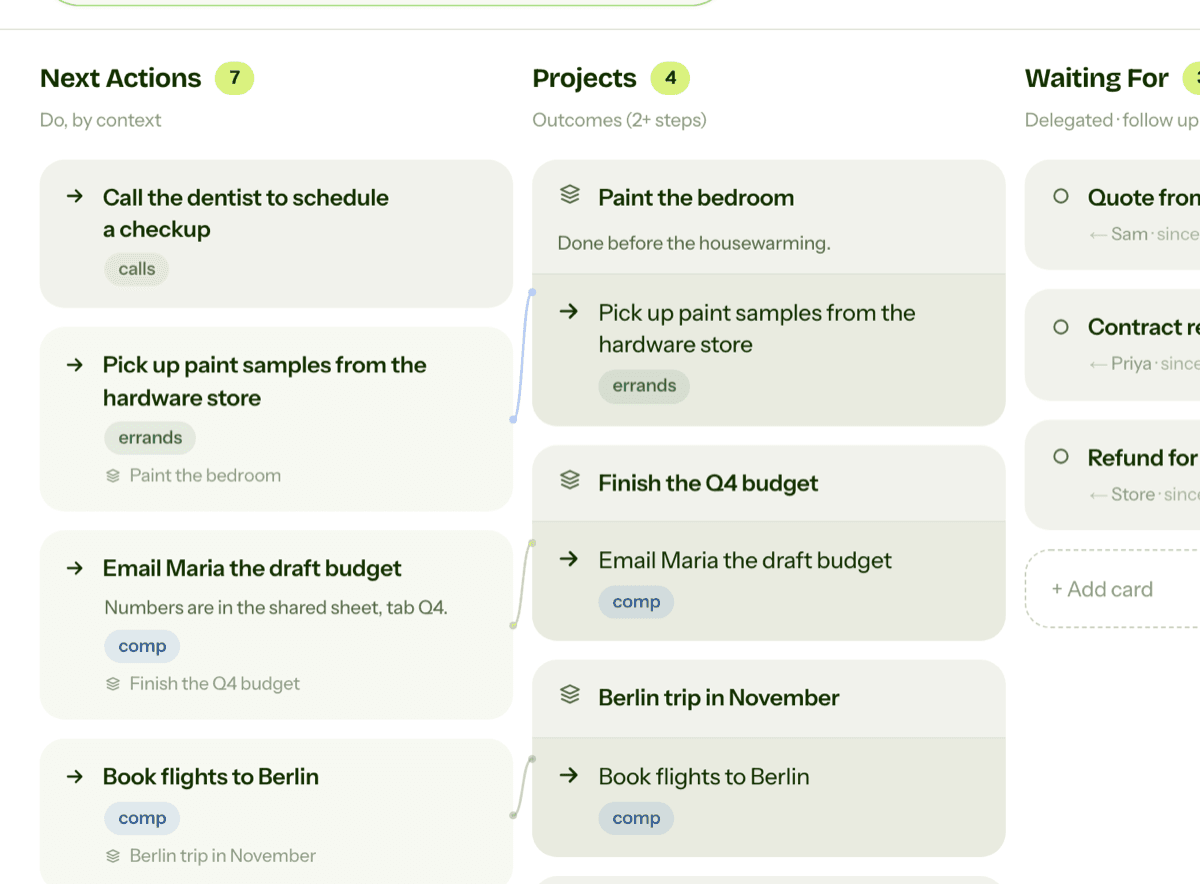
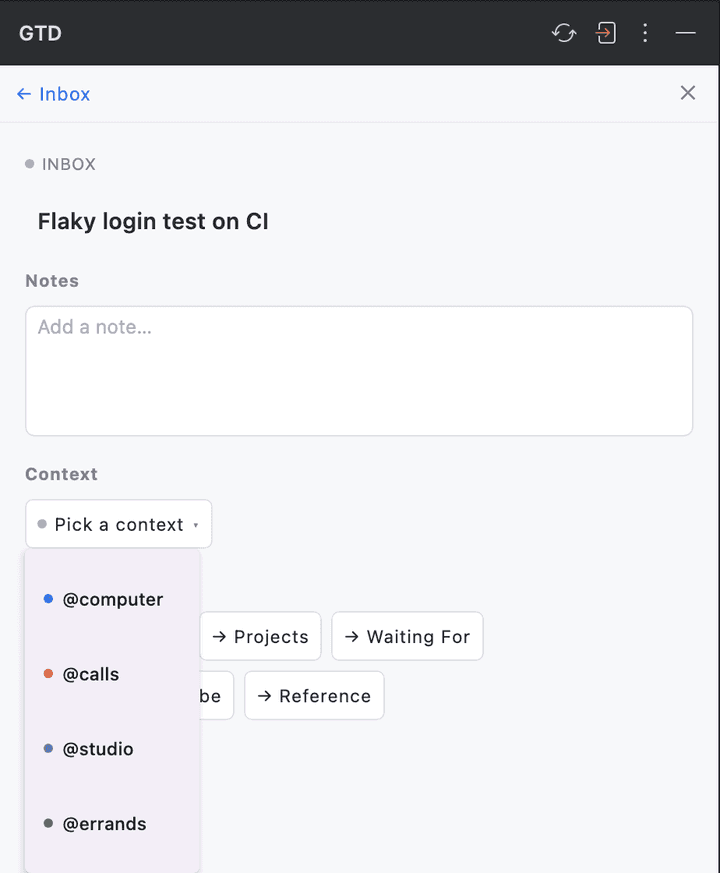
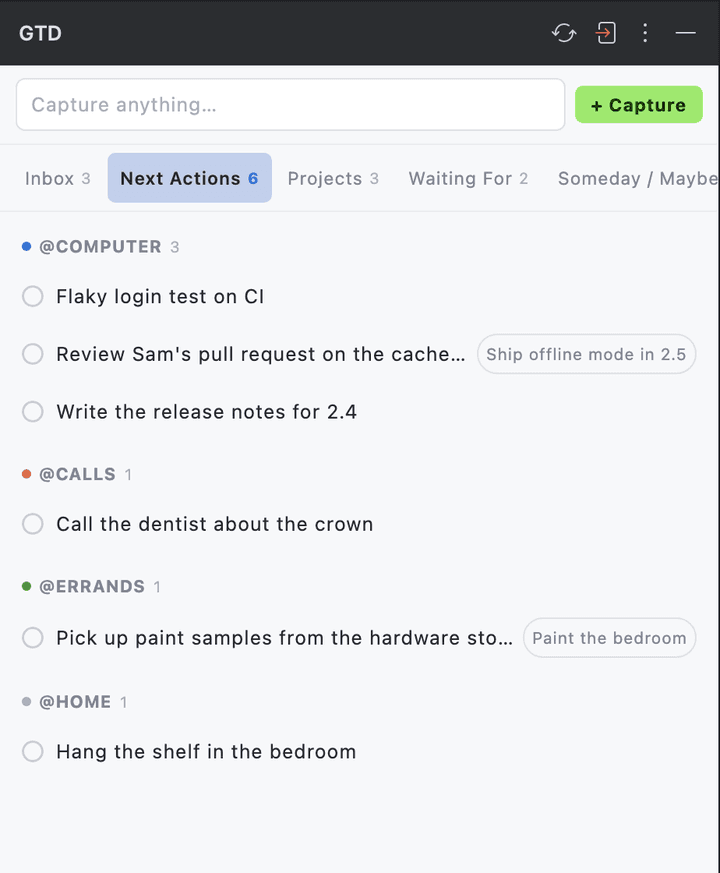
To clarify, click an inbox card. Pick a context, then press → Next Actions, or move the card to Projects, Waiting For or Someday / Maybe. Complete and Archive are at the bottom. The Next Actions tab groups your actions by context and shows the project each one belongs to.
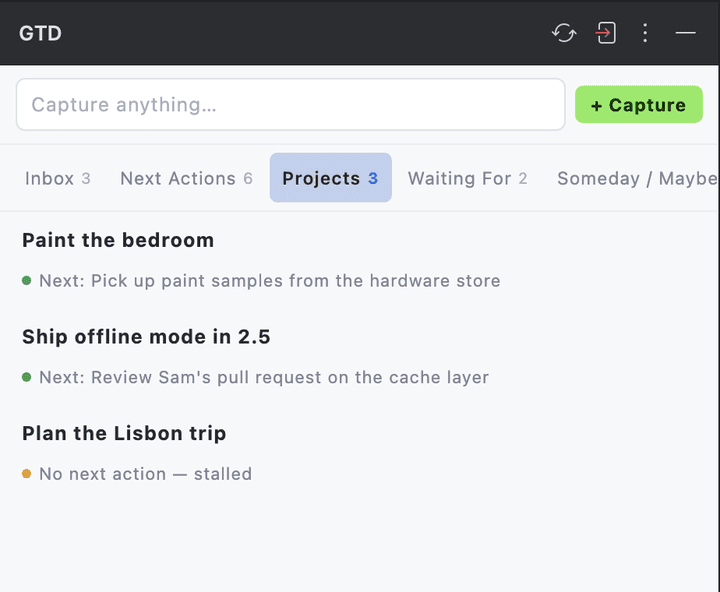
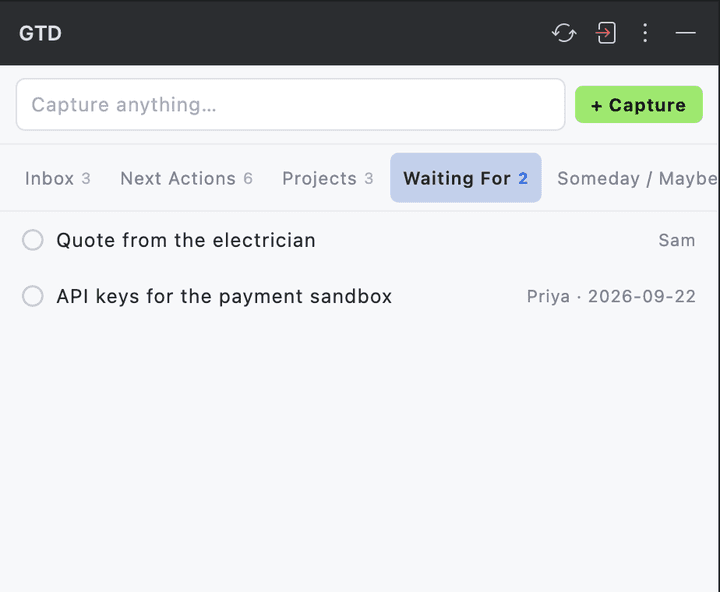
The Projects tab shows each project with its next action, or “No next action, stalled” when it has none, which is the check the text file could not do. Waiting For shows who you are waiting on and since when.
One thing the panel does not do yet is the guided weekly review; the Start review button is still a placeholder. Run the review in the web app or the phone app, where it walks the board card by card, and use the IDE panel for capture and for what to do next.
You can keep the TODO patterns from Step 2 for code comments. They are a good fit for work that belongs next to the code, and the board holds everything else. The same board is on the iPhone and Android apps and on the web, and ChatGPT, Claude and the other assistants on the connect page can read and change it. A card you capture in PyCharm at work is on your phone at the shop.
If you want the method without the workarounds
Everything above is real GTD, and plenty of people run it in IntelliJ for years. I built GTD Brain for the parts that keep breaking: it is a board with the GTD lists built in (Inbox, Next Actions with contexts, Projects, Waiting For, Someday), a built-in agent that clarifies your inbox into next actions, and a guided weekly review that walks you through the whole board card by card. The same board is on the iPhone app, the Android app and the web, and you can talk to it from ChatGPT, Claude and other assistants through the assistant connections.
You sign in with an email code, no password. The yearly plan starts with a free month and you can cancel before it bills. If you have read this far, you already know how the lists work, so the setup takes about two minutes: sign in at gtdbrain.com and do your first brain dump into the inbox.
Questions people ask
Can you do GTD in IntelliJ IDEA?
Yes. Keep your lists in a plain gtd.txt, one keyword per list (INBOX, @calls, @computer, @errands, WAITING, PROJECT, SOMEDAY), add those keywords as case-sensitive patterns under Settings, Editor, TODO, and add a filter per list. The TODO tool window then shows Next Actions by context, including // @computer comments in your code. It works the same in PyCharm, WebStorm and the other JetBrains IDEs.
Is there a GTD plugin for IntelliJ and other JetBrains IDEs?
Yes. GTD Brain is on the JetBrains Marketplace: search for GTD Brain under Settings, Plugins, Marketplace. It adds a side panel with a capture field and your Inbox, Next Actions by context, Projects, Waiting For and Someday lists, synced with the GTD Brain web and phone apps. It works in IntelliJ IDEA, PyCharm, WebStorm, GoLand, Rider, Android Studio and the other JetBrains IDEs, version 2024.3 or newer.
Why do my GTD lines not show up in IntelliJ's TODO window?
Usually one of three things. The file is Markdown: the TODO index reads plain text files and code comments but skips .md files, so rename it to gtd.txt. The pattern does not match: a case-sensitive \bINBOX\b.* needs the keyword in capitals. Or the file sits in another project: the TODO window only searches the project that is open.
Is the GTD Brain JetBrains plugin free?
The plugin is free to install, but GTD Brain is a paid membership: after you sign in with an email code, a non-member sees a button that opens checkout. The yearly plan starts with one free month that you can cancel before it bills, and one membership covers the IDE plugin, the web app, the iPhone and Android apps and the assistant connections.
Start free for a month →No charge for your first month · Cancel anytime