How to do GTD in VS Code (Markdown lists, TODO comments, and where it breaks)
A complete Getting Things Done setup inside VS Code, with screenshots: a gtd folder with one Markdown file per list, contexts as headings, TODO and FIXME comments treated as inbox items, a daily clarify and a weekly review, then where a folder on one laptop stops working and the GTD Brain extension that captures TODOs in one keystroke to a board your phone shares.
Start free for a month →No charge for your first month · Cancel anytime
On this page
The short version: if VS Code is open all day, it can hold a real Getting Things Done system. Keep a gtd folder with one Markdown file per list, write contexts as headings, and treat every TODO comment in your code as something captured, not something decided. Clarify once a day and review once a week. It costs nothing, and it is the first half of this guide. The second half is where a list that lives in one folder on one laptop stops working, and the GTD Brain extension, which keeps capture in the editor and puts the lists on a board your phone can reach.
Step 1: a gtd folder with five files
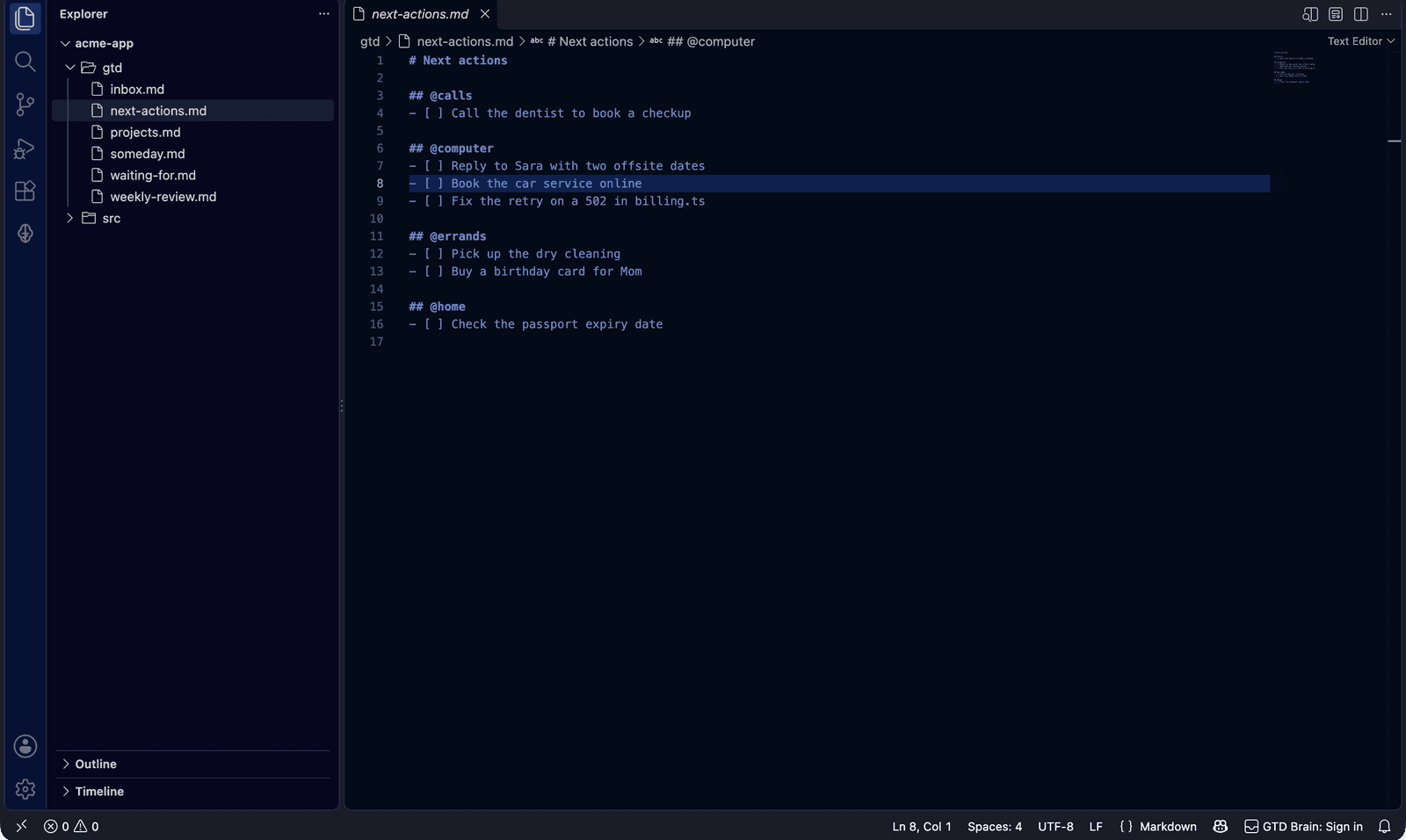
Make a folder called gtd with inbox.md, next-actions.md, projects.md, waiting-for.md and someday.md. Open it as its own window, or add it to the workspace you work in every day with File, Add Folder to Workspace, so the lists sit in the Explorer next to the code. Each file is a plain checklist, one item per line: - [ ] Call the dentist to book a checkup. Put the folder in git. A list you edit by hand every day is worth having a history for.
Contexts are headings in next-actions.md: ## @calls, ## @computer, ## @errands, ## @home. VS Code treats Markdown headings as symbols, so the Outline view lists your contexts, and Ctrl+Shift+O (Cmd+Shift+O on a Mac) jumps straight to @computer when you sit down with twenty minutes to spare.
Step 2: capture without leaving the editor
Capture has to take seconds or you will stop doing it. Press Ctrl+P (Cmd+P), type inbox, press Enter, go to the end of the file and type the thought. Do not sort, tag or rephrase it; the inbox exists so that you can dump things without deciding anything.
Step 3: TODO comments are an inbox too
Developers already capture all day. They just do it in comments: // TODO: retry on a 502 from the payment provider. In GTD terms that comment is an unprocessed inbox item that happens to live in a source file. Nothing decides whether it is a two-minute fix, a next action, a project, or something to delete, so it sits there for a year.
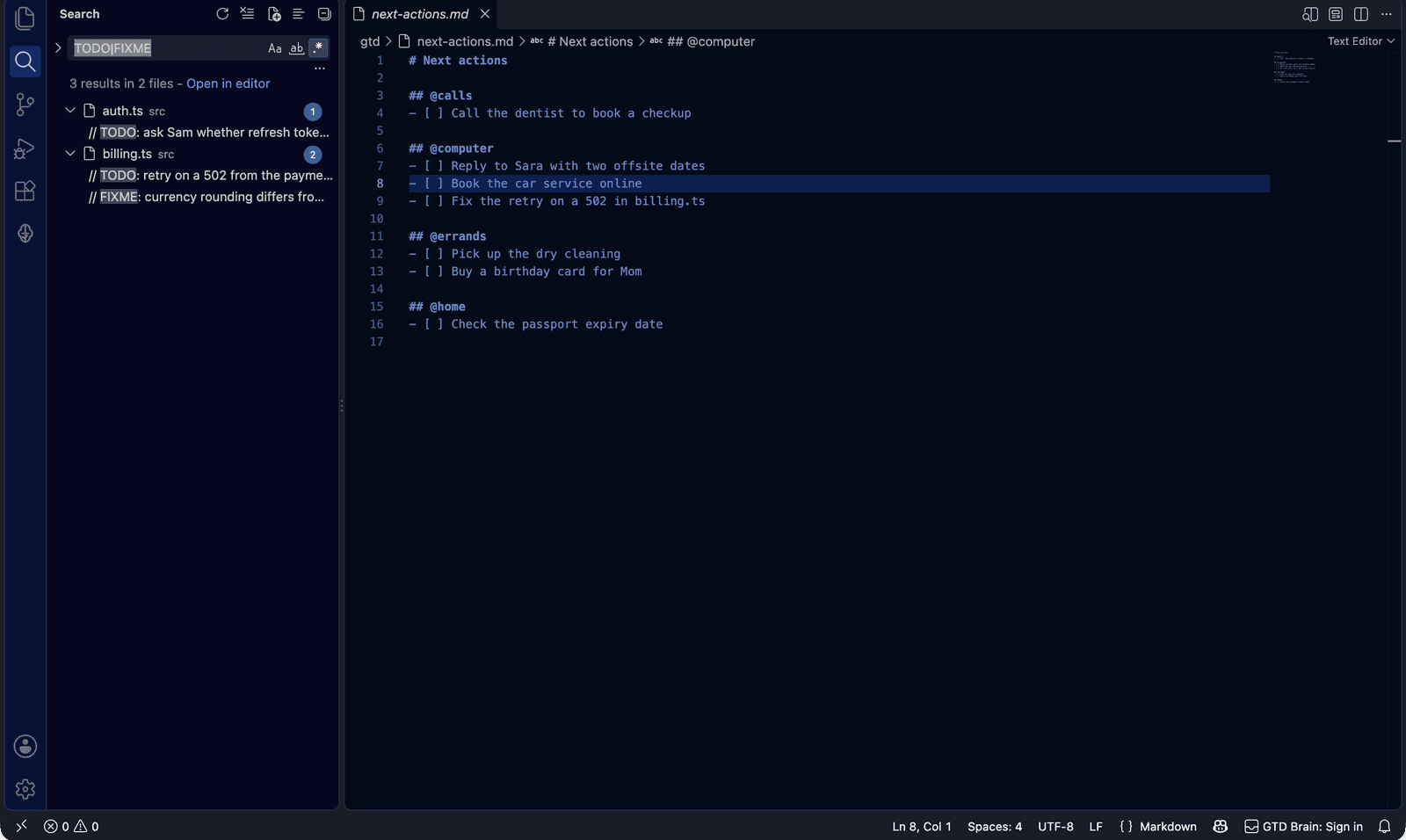
Pull them into view with the Search view: Ctrl+Shift+F, turn on the regular-expression toggle, and search for TODO|FIXME. You get every one in the workspace, grouped by file. Extensions like Todo Tree do the same thing in a permanent sidebar. Neither one clarifies anything for you; they only show the pile.
Step 4: next actions, projects and waiting for
A next action is one physical step, verb first, under the heading of the context where you can do it. “Fix the retry on a 502 in billing.ts” goes under @computer; “Pick up the dry cleaning” goes under @errands. projects.mdholds outcomes that need more than one step (“Q4 budget deck for Monday”), each with its current next action written under it, so you can see which ones have none. waiting-for.md is the list people forget: who owes you what, and when you asked. - [ ] Sam: do refresh tokens rotate? (asked 24 Sep).
Step 5: clarify every day
Once a day, open inbox.md and the TODO search side by side and work from the top. For each item, ask what the next physical action is. If it takes under two minutes, do it now. If it is one step, move it to the right context in next-actions.md, with the file and line when it is about code. If it needs more than one step, add it to projects.md with a first action. If you are waiting on someone, move it to waiting-for.md with a name and a date. If it is not now, move it to someday.md. A TODO comment you have turned into an action can then be deleted from the code, or kept as a pointer, as long as the list is where you decide from. The inbox should be empty when you finish.
Step 6: the weekly review
Add a sixth file, weekly-review.md, with the checklist: empty the inbox, run the TODO search and capture what matters, check that every project has a next action, chase anything in Waiting For older than a week, read Someday and decide what to start or drop. Put a repeating calendar event on Friday afternoon, untick the list and go through it. Commit the folder when you are done, so next week you can see what changed.
Where it breaks
This setup is good for as long as your life happens at your desk. Then you are on the bus, or in a meeting, or in a shop, and something needs capturing. The inbox is a file on a laptop that is shut, so the thought goes into your head or into a note on your phone that is not the inbox. GTD depends on everything going into one place, and that rule is broken by lunch. It works the other way round too: @errands is the list you need when you are out, and out is exactly where the file is not.
The second problem is the TODO comments. The regex search shows them, but turning one into a next action means copying text by hand, and the action in next-actions.md has no link back to the line it came from. Most of them never make the trip, so you end up with two systems: the list you check and the comments you do not. And nothing checks anything for you. A project with no next action, a waiting-for item three weeks old, an inbox that has not been emptied since Tuesday: each one is something you have to notice yourself during the review, in a file that looks the same whether it is up to date or not.
Step 7: keep capturing in VS Code, move the lists to a board
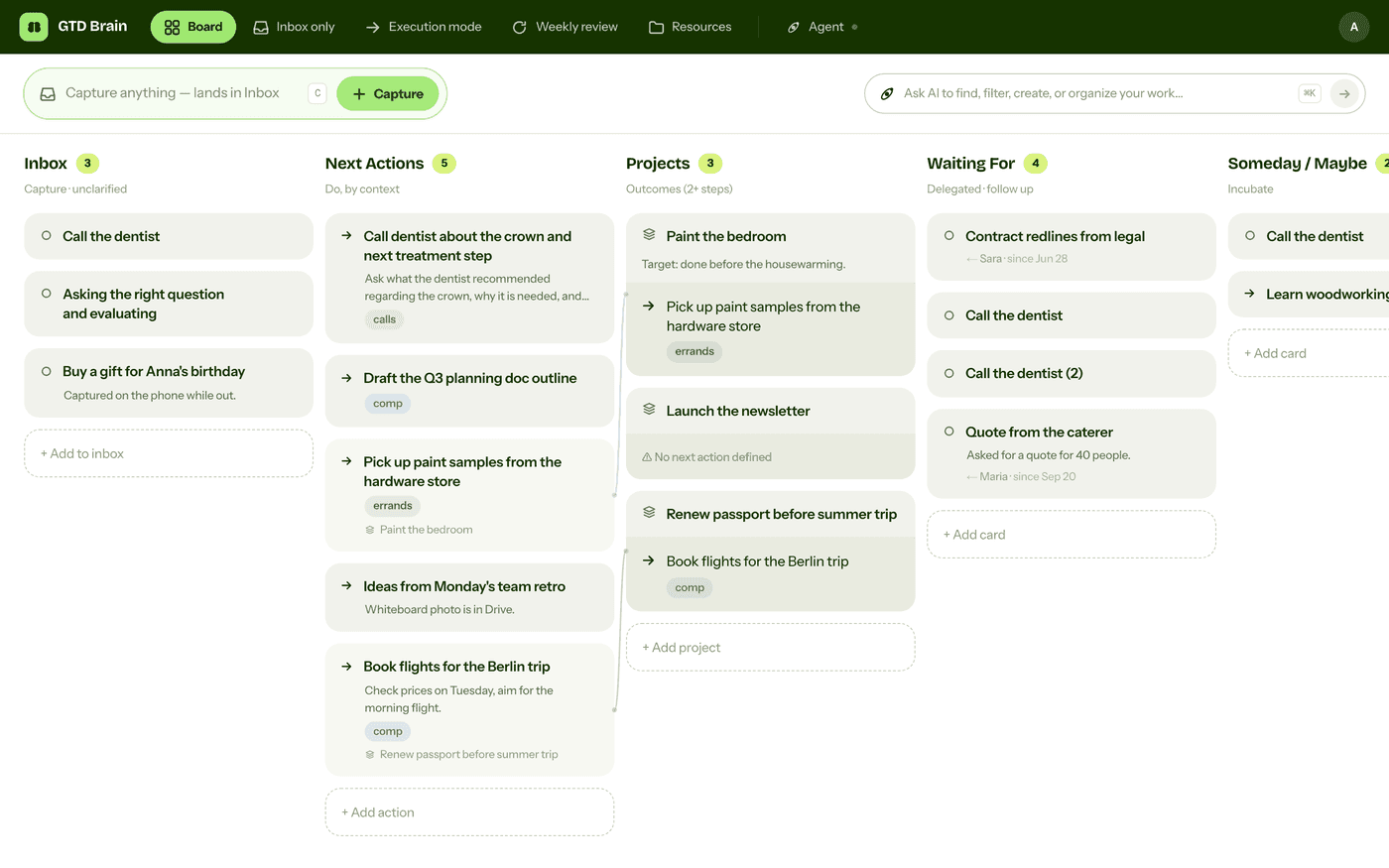
GTD Brain is a Getting Things Done board with the lists built in: Inbox, Next Actions with contexts, Projects, Waiting For, Someday/Maybe and Reference. Its VS Code extension keeps the part VS Code is good at, capture while you code, and moves the lists somewhere every device can reach. Open the Extensions view (Ctrl+Shift+X / Cmd+Shift+X), search for “GTD Brain” and install it, or open the listing on the VS Code Marketplace. It is also on Open VSX, the registry VSCodium and several other VS Code-based editors install from.
A GTD Brain icon appears in the Activity Bar. Click it, enter your email and type the code that arrives. There is no password and no API token to paste, and a new email creates the account.
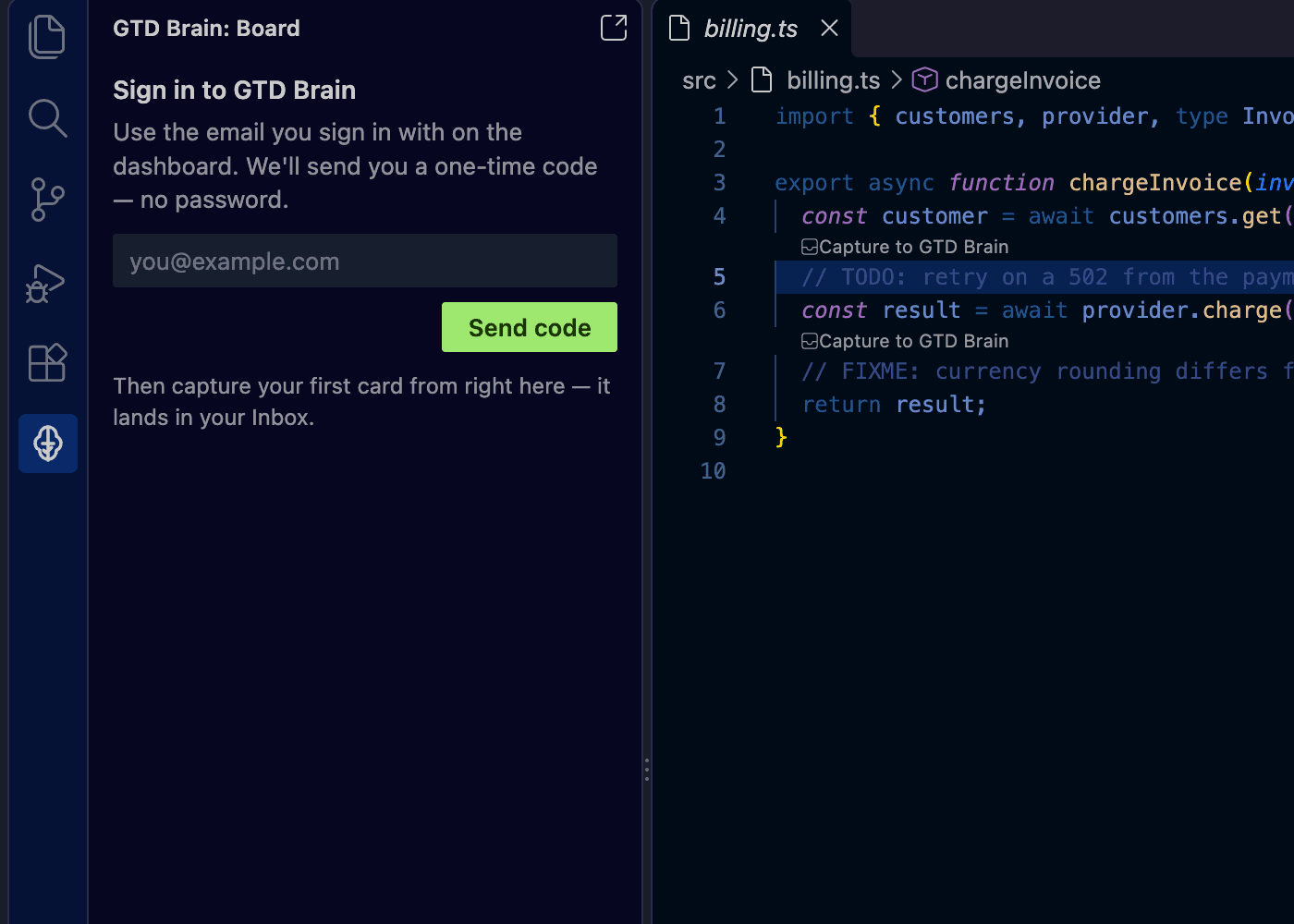
Once you are signed in, the sidebar has a capture field at the top and your lists below it: the top of the Inbox, Next Actions with their contexts, and Projects with their next action. The status bar shows how many cards are waiting in the Inbox. Above every TODO and FIXMEcomment there is now a small “Capture to GTD Brain” link.
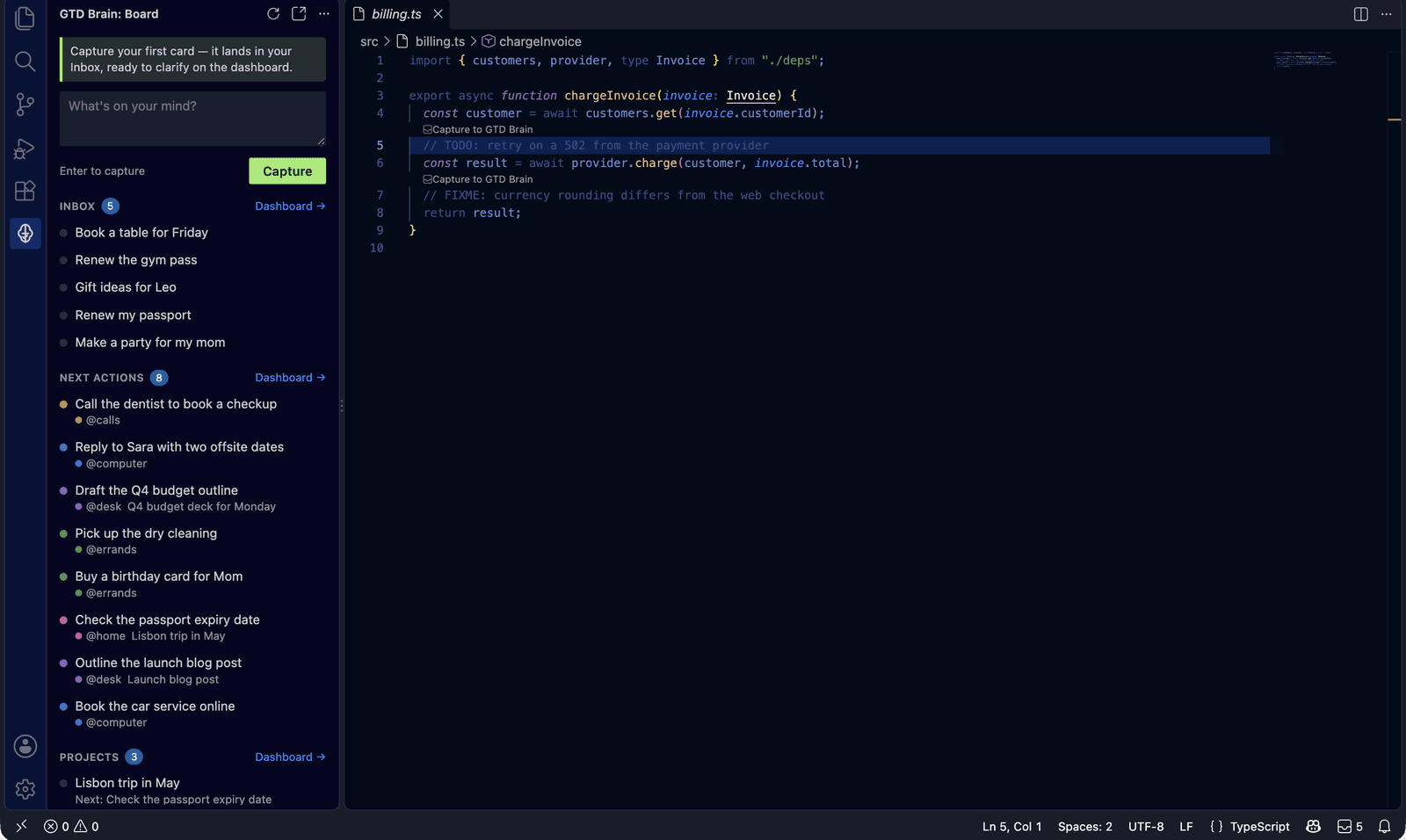
Capture is one keystroke. Put the cursor on a TODO and press Ctrl+Alt+G (Cmd+Alt+Gon a Mac), or click the link above the comment. The extension picks what to capture: the text you selected, the TODO on the current line, or otherwise the file and line you are on. Each card carries a link back to that line, so when you pick the action up next week, one click opens the code. The same commands are in the right-click menu and in the Command Palette as “GTD Brain: Capture”, and a plain thought goes in the sidebar’s capture field.
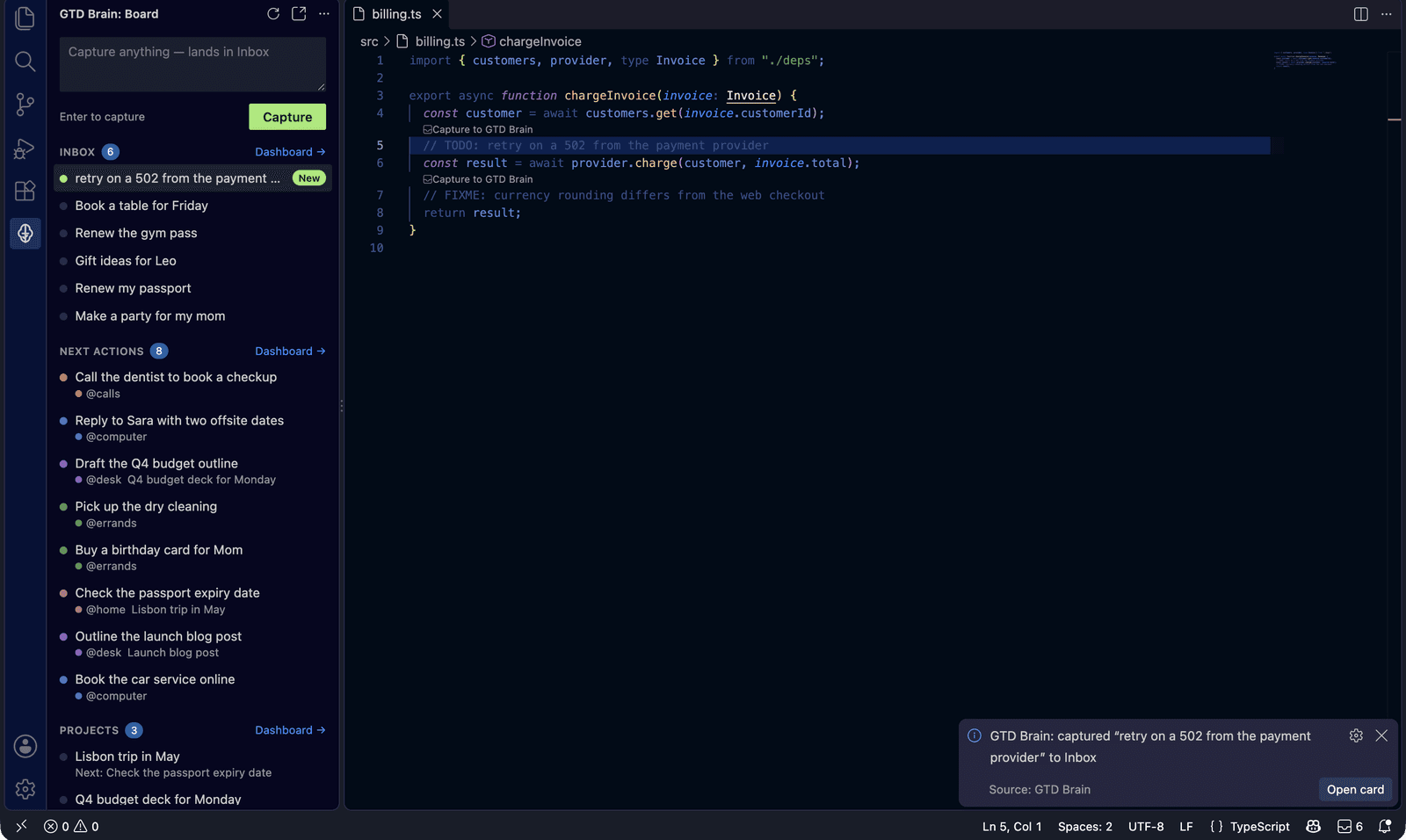
The sidebar is for capture and a quick look. Clarifying and editing happen on the board, on the web or in the phone apps, one click away through the Dashboard links. You can also let an assistant do the clarifying. ChatGPT and Claude connect to the same board, so the TODOs you captured in the afternoon are the cards ChatGPT sorts into next actions with you in the evening.
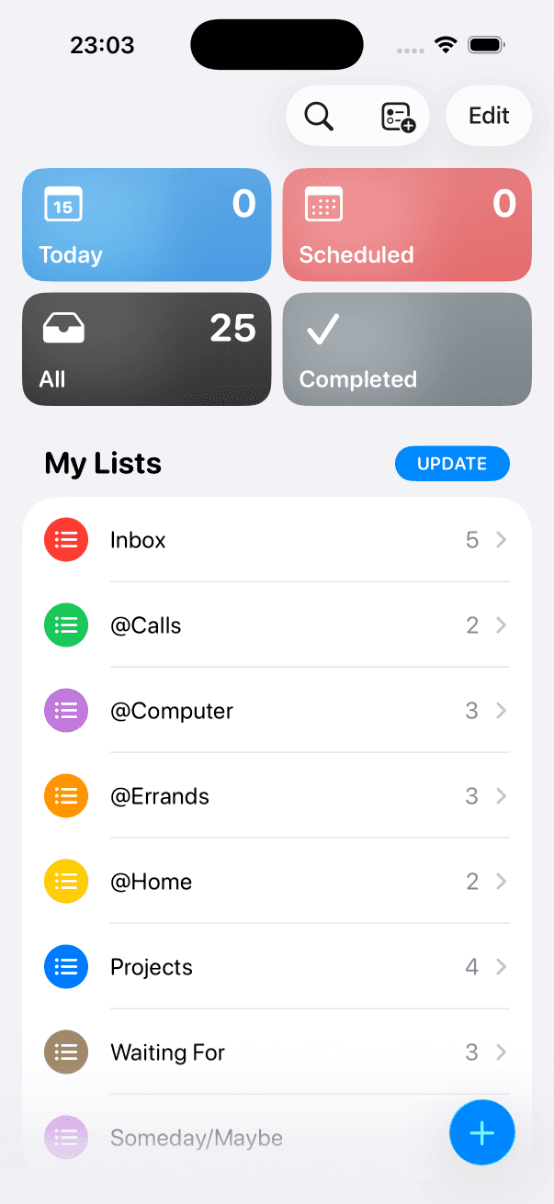
What changes is everything in the Where-it-breaks section. Capture on the bus goes into the same Inbox from the phone app or the Telegram bot, and it is in the VS Code sidebar when you sit down. @errands is on your phone when you are out. TODO comments become cards with a link back to their line, and the extension reads nothing in your workspace except what you choose to capture. The VS Code connect guide has the troubleshooting. The extension is free to install. Using the board needs a GTD Brain membership, the same one that covers the web and phone apps, and the yearly plan starts with a free month.
If you want the method without the workarounds
Everything above is real GTD, and plenty of people run it in VS Code for years. I built GTD Brain for the parts that keep breaking: it is a board with the GTD lists built in (Inbox, Next Actions with contexts, Projects, Waiting For, Someday), a built-in agent that clarifies your inbox into next actions, and a guided weekly review that walks you through the whole board card by card. The same board is on the iPhone app, the Android app and the web, and you can talk to it from ChatGPT, Claude and other assistants through the assistant connections.
You sign in with an email code, no password. The yearly plan starts with a free month and you can cancel before it bills. If you have read this far, you already know how the lists work, so the setup takes about two minutes: sign in at gtdbrain.com and do your first brain dump into the inbox.
Questions people ask
Can you do GTD in VS Code?
Yes. Keep a gtd folder with one Markdown file per list (inbox, next actions, projects, waiting for, someday), write contexts such as @calls and @computer as headings so the Outline view and Go to Symbol find them, capture into inbox.md through Quick Open, clarify it daily and walk a weekly-review checklist. It is free and needs no extension.
Should TODO comments be part of a GTD system?
Treat them as inbox items. A TODO comment is something you captured but never decided on, so it can sit in the code for a year. Search the workspace for TODO|FIXME with the regex toggle during the daily clarify, then fix each one now, turn it into a next action with the file and line, or delete it.
Is there a GTD extension for VS Code?
Yes. GTD Brain is on the VS Code Marketplace and Open VSX. It adds a sidebar with your Inbox, Next Actions and Projects, an Inbox count in the status bar, and Ctrl+Alt+G (Cmd+Alt+G on a Mac) to capture a selection, a TODO comment or the current line with a link back to it. Sign-in is an email code; using the board needs a GTD Brain membership.
What breaks when you keep GTD lists as Markdown files in VS Code?
Two things. The lists are files on one laptop, so there is no inbox on the bus and no errands list when you are out, which breaks the one-place rule GTD depends on. And TODO comments rarely make it onto the list, because moving one means copying text by hand with no link back, so the code and the list become two separate systems.
Start free for a month →No charge for your first month · Cancel anytime