How to set up GTD in Apple Reminders (and where it runs out)
A complete Getting Things Done setup in Apple Reminders, with screenshots: one list per bucket, contexts as lists or tags, a daily clarify and a weekly review built from the All view, plus the three gaps you hit after a few weeks.
Start free for a month →No charge for your first month · Cancel anytime
On this page
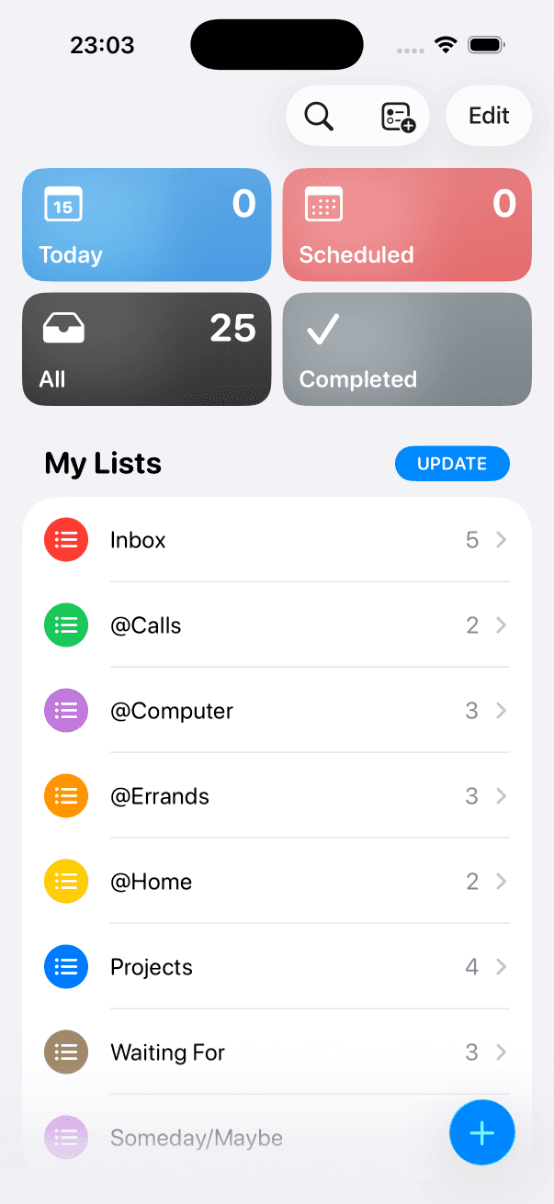
The short version: make one list per GTD bucket. Inbox, one list per context for your next actions (@Calls, @Computer, @Errands, @Home), Projects, Waiting For and Someday/Maybe. Capture everything into Inbox, sort it into the other lists once a day, and read the whole set top to bottom once a week from the All view. That is a complete Getting Things Done system, it costs nothing, and it works on every iPhone, iPad and Mac you own. The rest of this guide is the setup, with screenshots, and then the honest list of what Reminders cannot do.
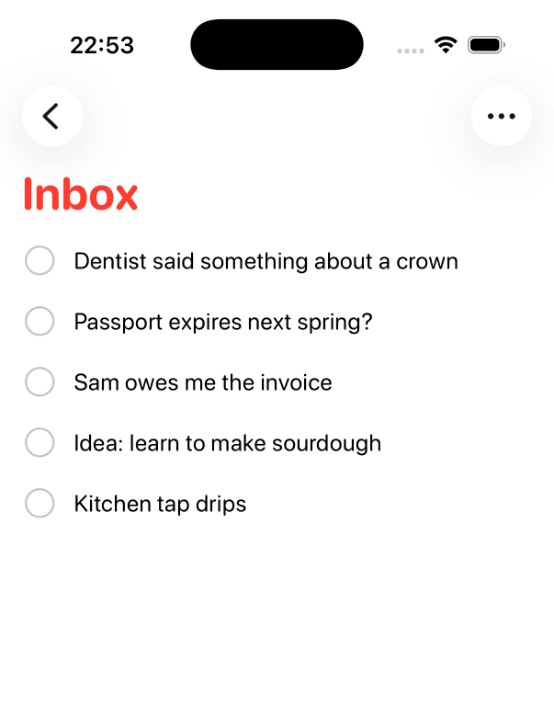
Step 1: the Inbox
Open Reminders, tap the new-list button (top right) and name the list Inbox. Give it a colour you will recognise; in the screenshots it is red, the list that should be empty. If Reminders already made a default list called Reminders, you can rename that instead or swipe it away later.
From now on this is the only list you add things to during the day. Do not sort while you capture. “Dentist said something about a crown” is a fine inbox entry; deciding what to do about it is a separate step. Two things make the Inbox stick: set it as the default list in Settings, Apps, Reminders, so that Siri and the share sheet drop things there, and get used to saying “Hey Siri, remind me to call the bank” without touching the phone.
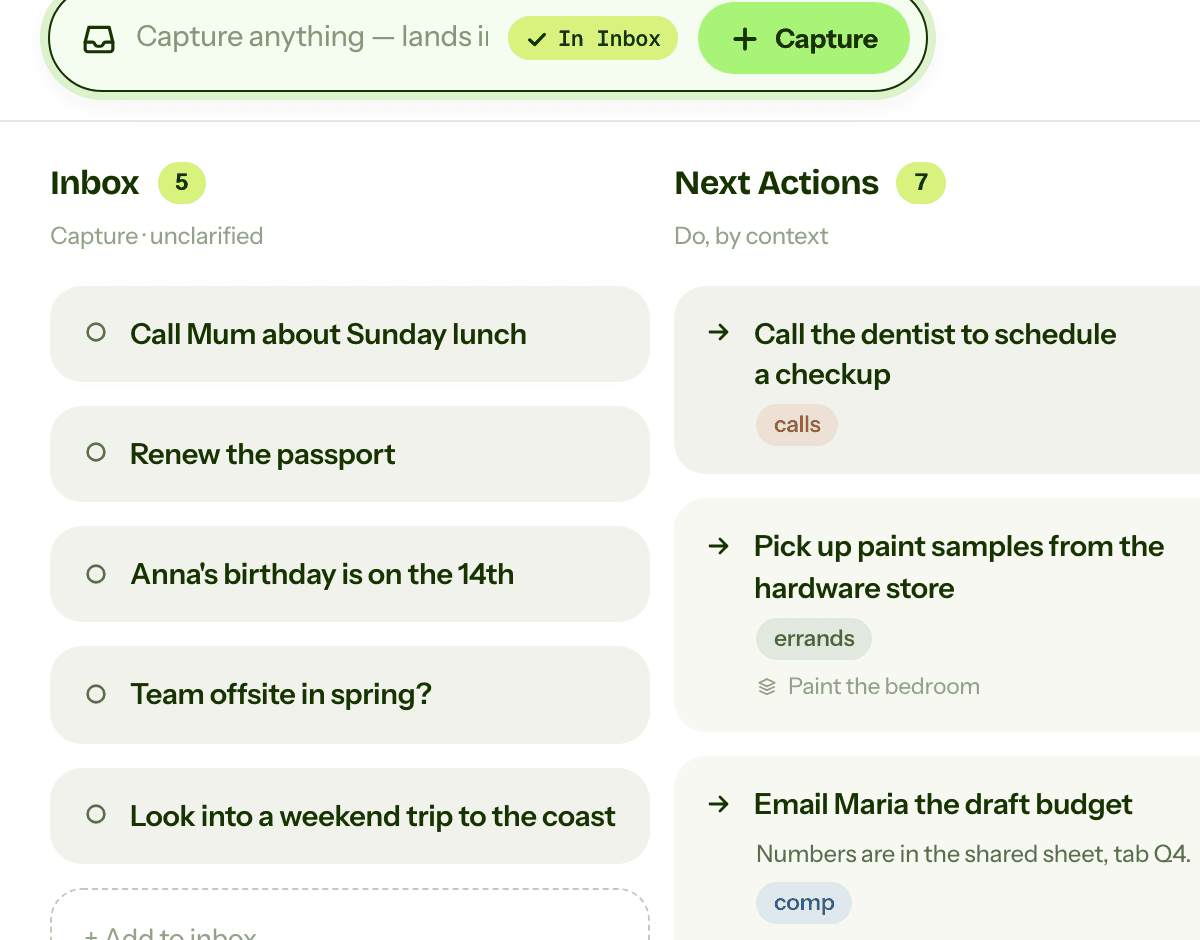
GTD BrainOne Inbox you can add to from the web, iPhone, Android, a browser extension, ChatGPT, Claude or Telegram.
Step 2: Next Actions, one list per context
GTD sorts next actions by the situation you need to be in to do them. Reminders has no context field, so the simplest thing that works is a list per context. Four is plenty to start: @Calls, @Computer, @Errands, @Home. The @ prefix is only there so they sort together and look different from the project lists.
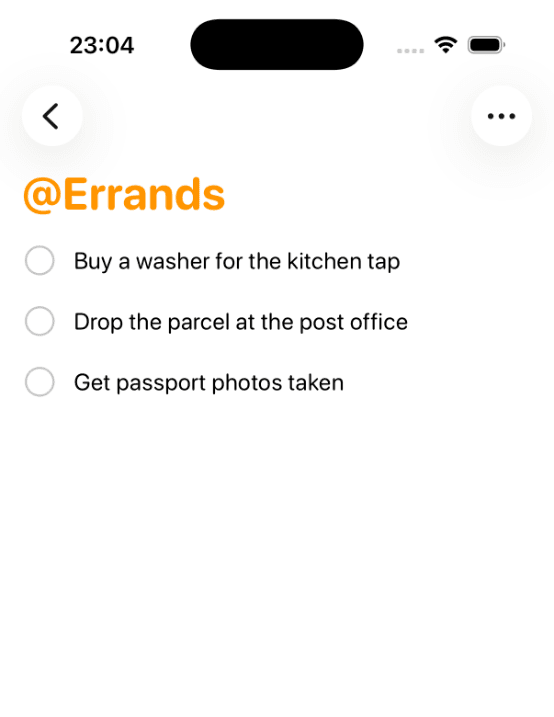
Write every entry as a physical, visible action: “Call the dentist to book the crown fitting”, not “dentist”. When you are out, you open @Errands and nothing on it needs a computer. That is the whole point of contexts.
If you sign in with an Apple Account and turn on iCloud for Reminders, you get a second option: keep a single Next Actions list and put a tag like #calls on each item, then make a Smart List per tag. Tags and Smart Lists only exist on iCloud-synced lists, which is why the screenshots here use plain lists. Either way works; the list-per-context version has fewer taps.
GTD BrainContexts are a field on each next action, and the agent can list just your @errands.
Step 3: Projects
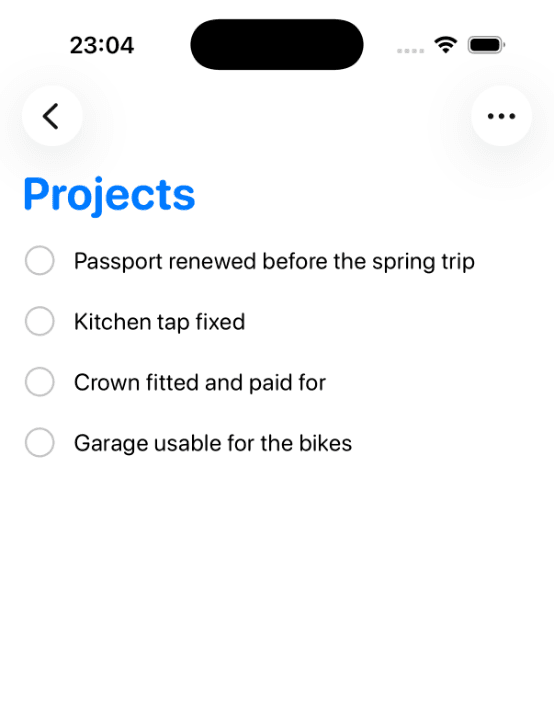
A project in GTD is anything that takes more than one action. Make a Projects list and put one entry per outcome, written as the finished state: “Passport renewed before the spring trip”, “Kitchen tap fixed”. Do not put the steps here. The next physical step for each project goes in the right context list, and the project entry stays as your reminder that the outcome is still open.
Reminders does have subtasks, and it is tempting to nest the steps under each project. The catch is that subtasks live inside the parent's list, so they never show up in @Calls or @Errands. Use the notes field on the project for the plan and the running history, and keep actual next actions in the context lists.
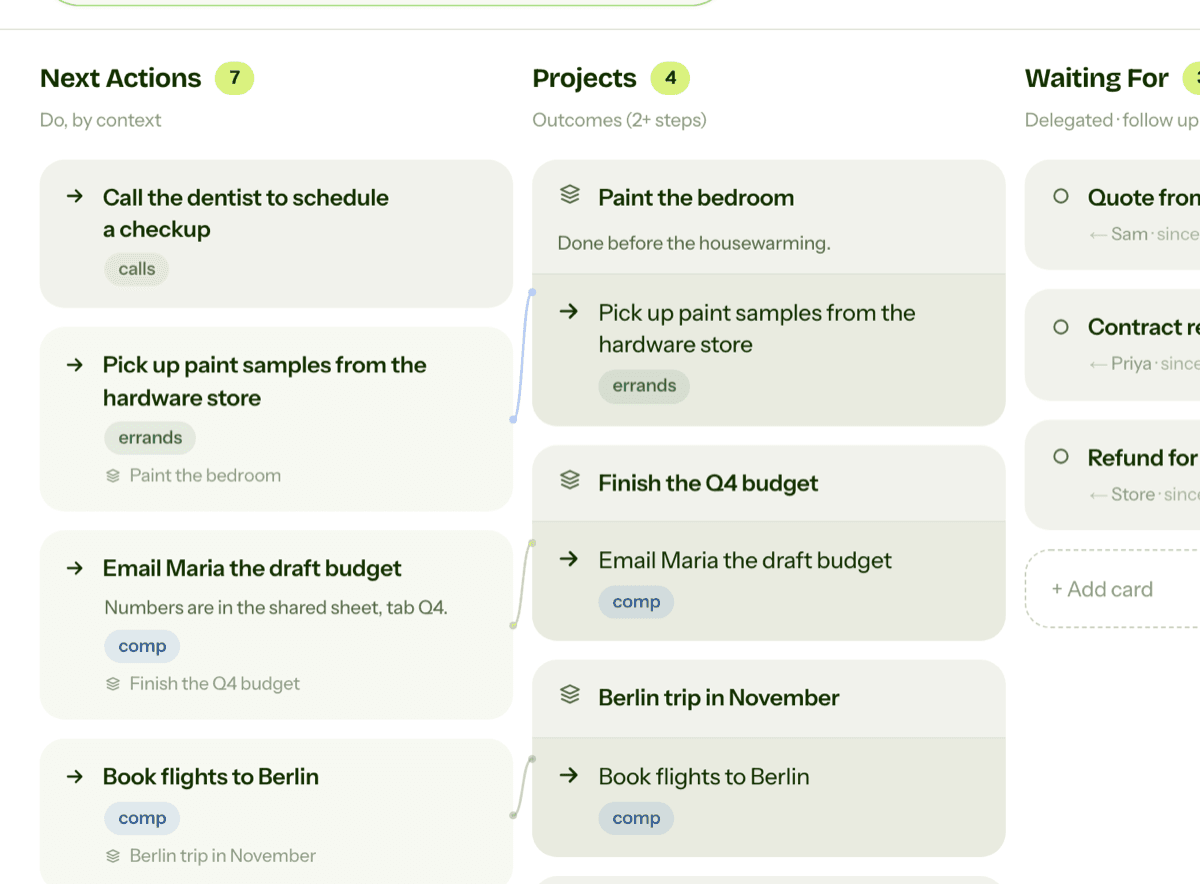
GTD BrainEach project links to its next action and shows when it has none.
Step 4: Waiting For
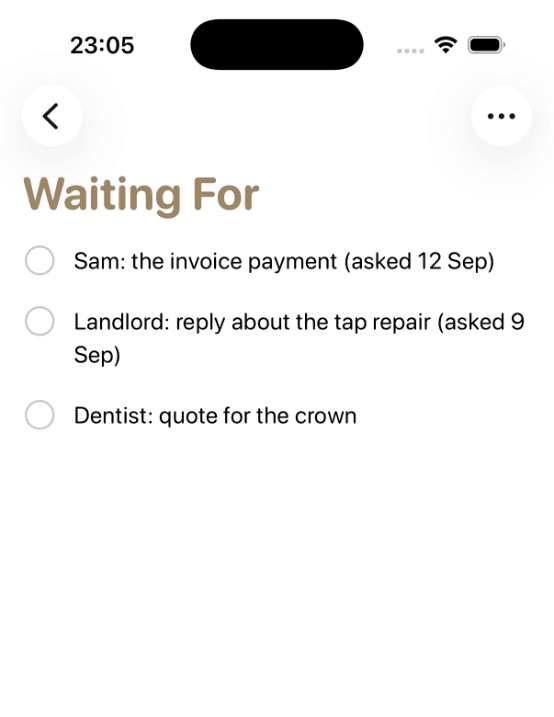
Anything you have handed to someone else goes here, one entry per thing, with the person's name first and the date you asked: “Sam: the invoice payment (asked 12 Sep)”. Reminders has no field for that date, so it goes in the title, where you will see it during the review and know when to chase.
GTD BrainWaiting For is its own list, which ChatGPT or Claude can read back once connected.
Step 5: Someday/Maybe
The parking lot. Ideas you are not committing to, trips, things to learn, the hallway you might repaint. One list, no dates, no contexts. It matters because it gives half-formed ideas somewhere to go that is not the Inbox and not your head, so they stop nagging.
GTD BrainThe weekly review shows each Someday/Maybe item, to keep, move to Next Actions or archive.
Step 6: clarify the Inbox every day
Once a day, open the Inbox and take each entry in order. If it is a single action, rewrite it as one and move it to the right context list (tap the entry, then the info button, then List). If it takes more than one action, add the outcome to Projects and the first step to a context list. If someone else has it, Waiting For. If it is not happening soon, Someday/Maybe. If it is nothing, delete it. The Inbox should be empty when you close it, which takes a few minutes if you do it daily and an evening if you do not.
GTD BrainThe built-in agent can turn each capture into a next action or a project with its first step.
Step 7: the weekly review
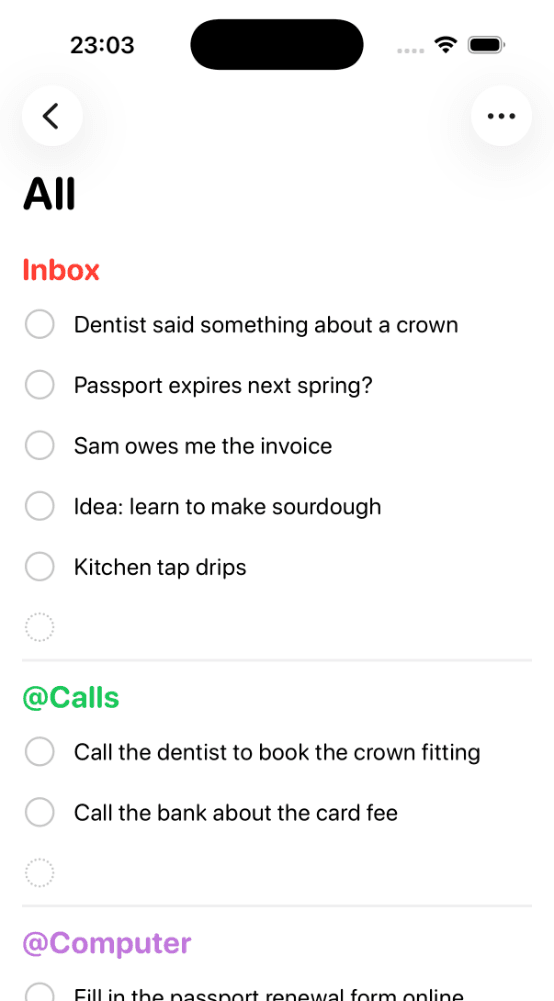
Reminders has no review mode, so you build one from the views it does have. Open the All view: it stacks every list in order, so you can read the whole system in one scroll. Empty the Inbox first. Then, for every project, check that at least one next action exists in a context list, and add one if it does not. Then Waiting For: chase anything older than a week. Then Someday/Maybe: promote anything whose time has come, delete anything you no longer want. Finish by glancing at Completed to see what actually got done. Put a repeating reminder for this in the @Home list on Friday afternoon or Sunday evening, whichever you will actually do.
GTD BrainA guided review walks you through the board one card at a time.
What Reminders cannot do for GTD
Three gaps show up after a few weeks. The first is that nothing links a project to its next action. The project entry and the action are two unrelated items in two lists, so the check “does every project have a next action” is something you do by eye, every week, for every project. When a list of twenty projects meets a busy month, that check is the first thing to slip, and stalled projects are how GTD systems die.
The second is that the weekly review is entirely on you. There is no walk-through, no “you have not looked at this one in three weeks”, no prompt that Sam has now owed you that payment for twelve days. Reminders shows you lists; it never asks you a question.
The third is clarifying. Turning “dentist said something about a crown” into a call, a project and a waiting-for item is the step most people stop doing, and Reminders gives you no help with it. The best parts of Reminders for GTD, Siri capture and the location reminders on @Errands, are on the capture side. Everything after capture is manual.
If you want the method without the workarounds
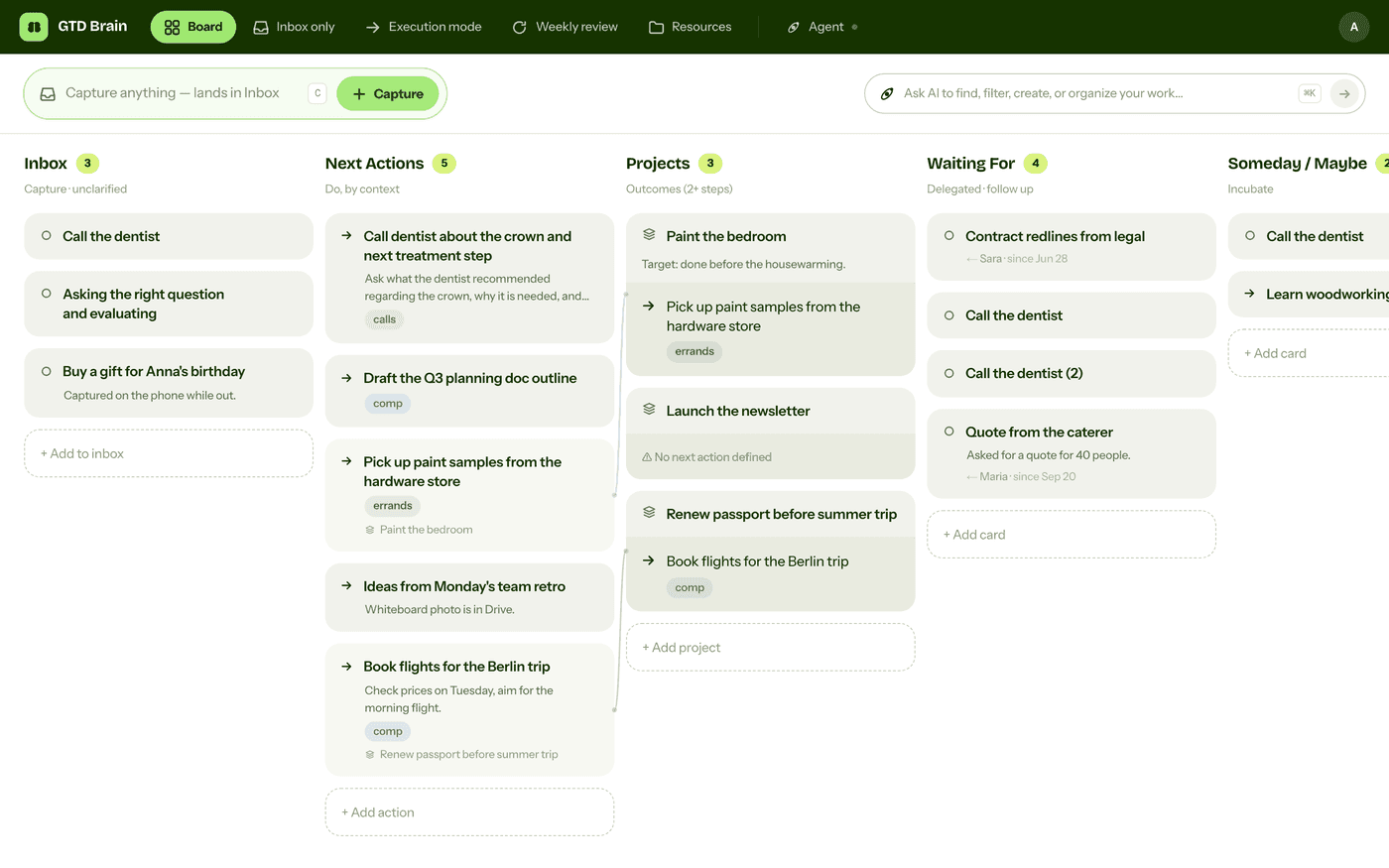
Everything above is real GTD, and plenty of people run it in Reminders for years. I built GTD Brain for the parts that keep breaking: it is a board with the GTD lists built in (Inbox, Next Actions with contexts, Projects, Waiting For, Someday), a built-in agent that clarifies your inbox into next actions, and a guided weekly review that walks you through the whole board card by card. The same board is on the iPhone app, the Android app and the web, and you can talk to it from ChatGPT, Claude and other assistants through the assistant connections.
You sign in with an email code, no password. The yearly plan starts with a free month and you can cancel before it bills. If you have read this far, you already know how the lists work, so the setup takes about two minutes: sign in at gtdbrain.com and do your first brain dump into the inbox.
Questions people ask
Can you do GTD in Apple Reminders?
Yes. Make one list per GTD bucket — Inbox, one list per context for next actions (@Calls, @Computer, @Errands, @Home), Projects, Waiting For and Someday/Maybe — capture everything into Inbox, sort it once a day, and read every list top to bottom once a week from the All view. It costs nothing and syncs across iPhone, iPad and Mac.
How do you handle GTD contexts in Apple Reminders?
Reminders has no context field, so use one list per context (@Calls, @Computer, @Errands, @Home) and move each next action into the list for the situation you need to be in. Tags work as a second axis if you prefer a single Next Actions list, and location reminders on @Errands are the one thing Reminders does better than most GTD apps.
How do you do a GTD weekly review in Apple Reminders?
Reminders has no review mode, so build one from the All view, which stacks every list in one scroll. Empty the Inbox, check that every project has a next action in a context list, chase anything in Waiting For older than a week, promote or delete Someday/Maybe items, then glance at Completed. Put a repeating reminder for it in @Home.
What can't Apple Reminders do for GTD?
Three things. Nothing links a project to its next action, so finding stalled projects is a manual weekly check. There is no guided weekly review — Reminders shows lists but never asks a question. And clarifying is entirely manual: turning a vague capture into a call, a project and a waiting-for item gets no help. Capture is strong; everything after it is on you.
Start free for a month →No charge for your first month · Cancel anytime