How to set up GTD in Microsoft To Do (and what it will not do)
A complete Getting Things Done setup in Microsoft To Do: an Inbox plus flagged email, context lists in a Next Actions group (or hashtags), Projects without Steps as actions, Waiting For with ask dates, a daily clarify, a weekly review, and where the app stops helping.
Start free for a month →No charge for your first month · Cancel anytime
On this page
The short version: in Microsoft To Do, make a list for each GTD bucket and put the context lists in a group. Inbox at the top, a Next Actions group holding @Calls, @Computer, @Errands and @Home, then Projects, Waiting For and Someday/Maybe. Capture into Inbox from the phone app, the web app or a flagged email in Outlook, sort it once a day, and read every list once a week. Ignore My Day and Important until the lists work; they are views, not GTD. That is a working Getting Things Done setup on a free Microsoft account, and it syncs everywhere To Do runs. Below is the setup step by step, then what To Do will not do for you.
Step 1: the Inbox
In the sidebar, click New list and call it Inbox. To Do ships with a default list called Tasks that you cannot delete, so either use Tasks as your Inbox or leave it empty and make a real one. The name matters, because it is the list you promise yourself to empty.
Everything goes in here first, unsorted. On the phone, the add button at the bottom of the Inbox is the fastest capture. If you live in Outlook, the Flagged email list is a second inbox: flag a message and it appears in To Do as a task with a link back to the mail. Treat it exactly like the Inbox and empty it at the same time.
Step 2: Next Actions, one list per context, in a group
To Do has no context field, so use lists. Create @Calls, @Computer, @Errands and @Home, then click New group, name it Next Actions, and drag the four lists into it. The group collapses in the sidebar, so the whole set reads like a single Next Actions list that opens into contexts. Each entry is a physical action, written so you can do it without thinking: “Call the dentist to book the crown fitting” goes in @Calls, “Buy a washer for the kitchen tap” goes in @Errands.
There is a second way. Keep one Next Actions list and type a hashtag into each task title: “Call the bank about the card fee #calls”. To Do turns the hashtag into a link, and clicking it searches for every task carrying that tag across all your lists. It is a search result rather than a list, so you cannot sort it or pin it, but if you prefer one list and a filter, it works, and you can tag a task with two contexts. The group is the better daily driver; hashtags suit the odd extra label like #15min.
Step 3: Projects
Make a Projects list, one task per outcome, phrased as the finished state: “Passport renewed before the spring trip”, “Garage usable for the bikes”. To Do offers Steps inside every task, and it looks like the obvious place for the plan. Use Steps for the plan, but not for the next action. A step lives inside its parent task, so it never appears in @Calls or @Errands, which is where you actually look when you have ten minutes. The rule that keeps the system honest: every open project has at least one real task in a context list, and the Steps are just notes about what comes after.
Step 4: Waiting For
One list, one task per thing you are waiting on, with the person and the date you asked in the title: “Sam: the invoice payment (asked 12 Sep)”. To Do has a due date and a reminder, and it is fine to set a reminder for the day you want to chase, but keep the ask date in the title. That is the number you look at in the weekly review, and it should be visible without opening the task.
Step 5: Someday/Maybe
A list with no dates and no reminders. Ideas, trips, things to learn. If To Do starts suggesting these in My Day, that is a sign they have due dates they should not have. Nothing here is a commitment, which is what makes it safe to write things down.
Step 6: clarify the Inbox every day
Open the Inbox once a day and take each task from the top. Rewrite it as a physical action and move it to a context list (right-click, Move task to, or drag it onto the list in the sidebar). If it needs more than one action, add the outcome to Projects and the first action to a context. If someone else has it, Waiting For. If it is an idea, Someday/Maybe. If it is nothing, delete it. Do the Flagged email list in the same pass. Stop when both are empty.
Step 7: the weekly review
To Do has no review mode, so the review is a fixed walk through the sidebar, top to bottom, once a week. Empty the Inbox and Flagged email. Open Projects and, for each one, check a next action exists in a context list; add one if not, and close the project if it is done. Open Waiting For and chase everything older than a week. Open Someday/Maybe and promote or delete. Finally open each context list and delete or rewrite anything you have been skipping for a month. Make the review itself a repeating task in @Home so it shows up in Planned on the right day.
My Day fits in after the review, not instead of it. Each morning, pull a handful of tasks from the context lists into My Day and work from there. It resets overnight, which is a feature: a stale plan does not follow you into tomorrow, and the tasks stay in their lists.
What Microsoft To Do cannot do for GTD
Contexts are the first limit. Hashtags are searchable, not filterable, and a group of lists is a workaround rather than a feature. There is no way to see “everything I can do at the computer that belongs to the passport project” without doing the cross-reference in your head.
The second limit is that nothing ties a project to its next action. The project in Projects and the call in @Calls are two unrelated tasks. When the call is done, nothing tells you the project now has no next action. Finding stalled projects is a manual weekly check, and it is the check people stop doing first.
The third is that there is no review flow at all. To Do is very good at today: My Day, suggestions, reminders. It has no opinion about the week, no prompt that Sam has now owed you for twelve days, and no help with the clarifying step, where a vague note has to become a real action. Capture and today are strong. The middle of the method, from inbox to clarified lists, is on you every single day.
If you want the method without the workarounds
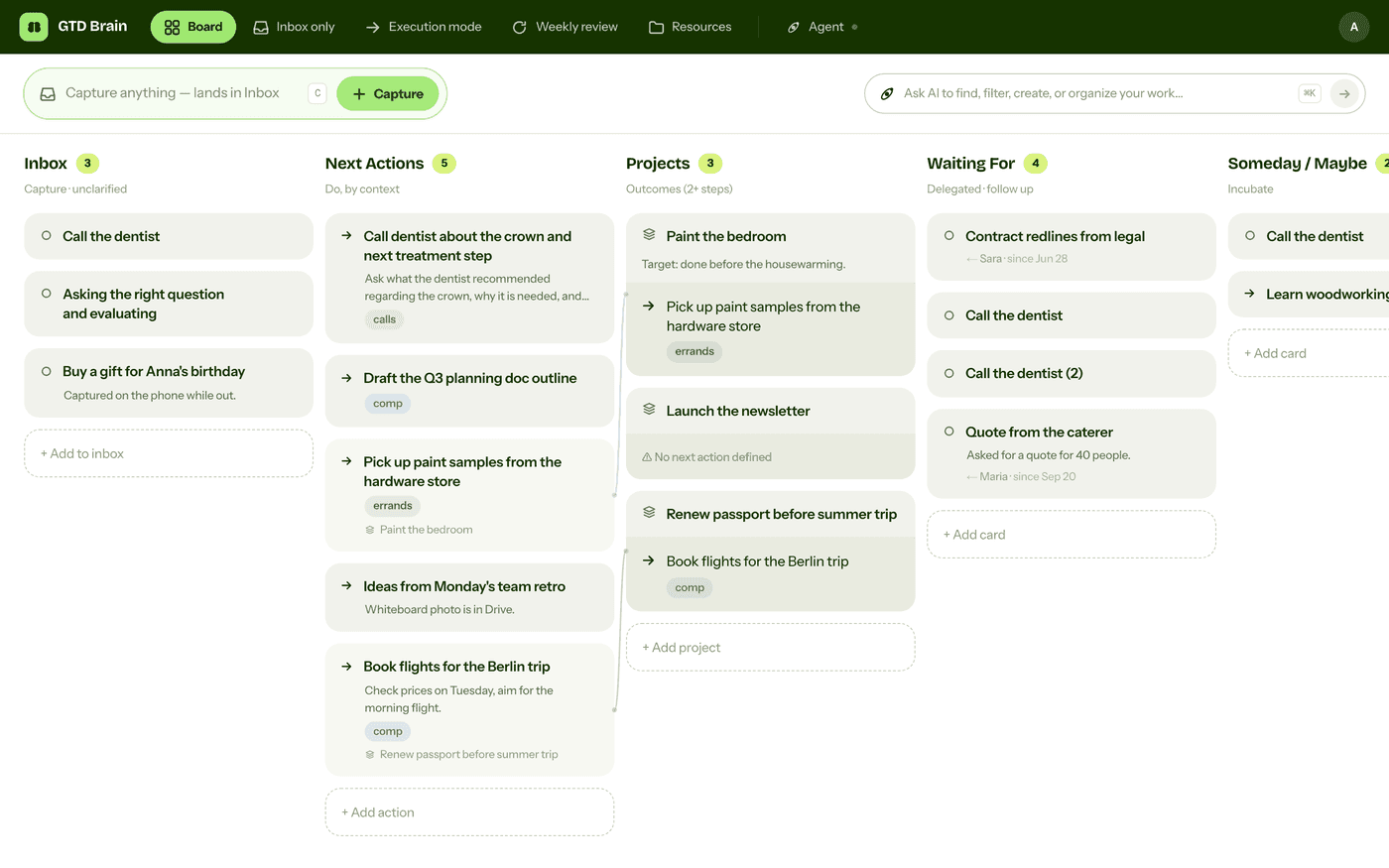
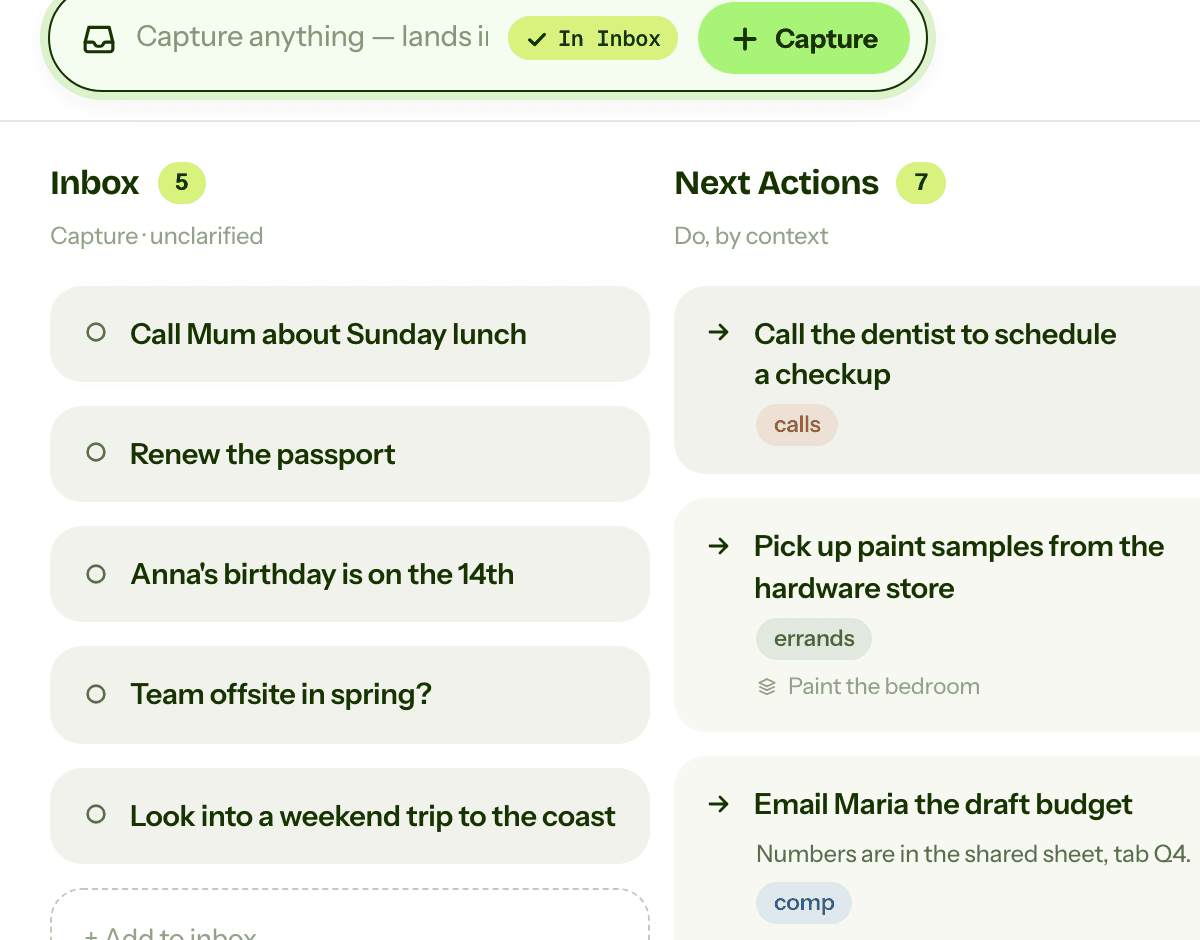
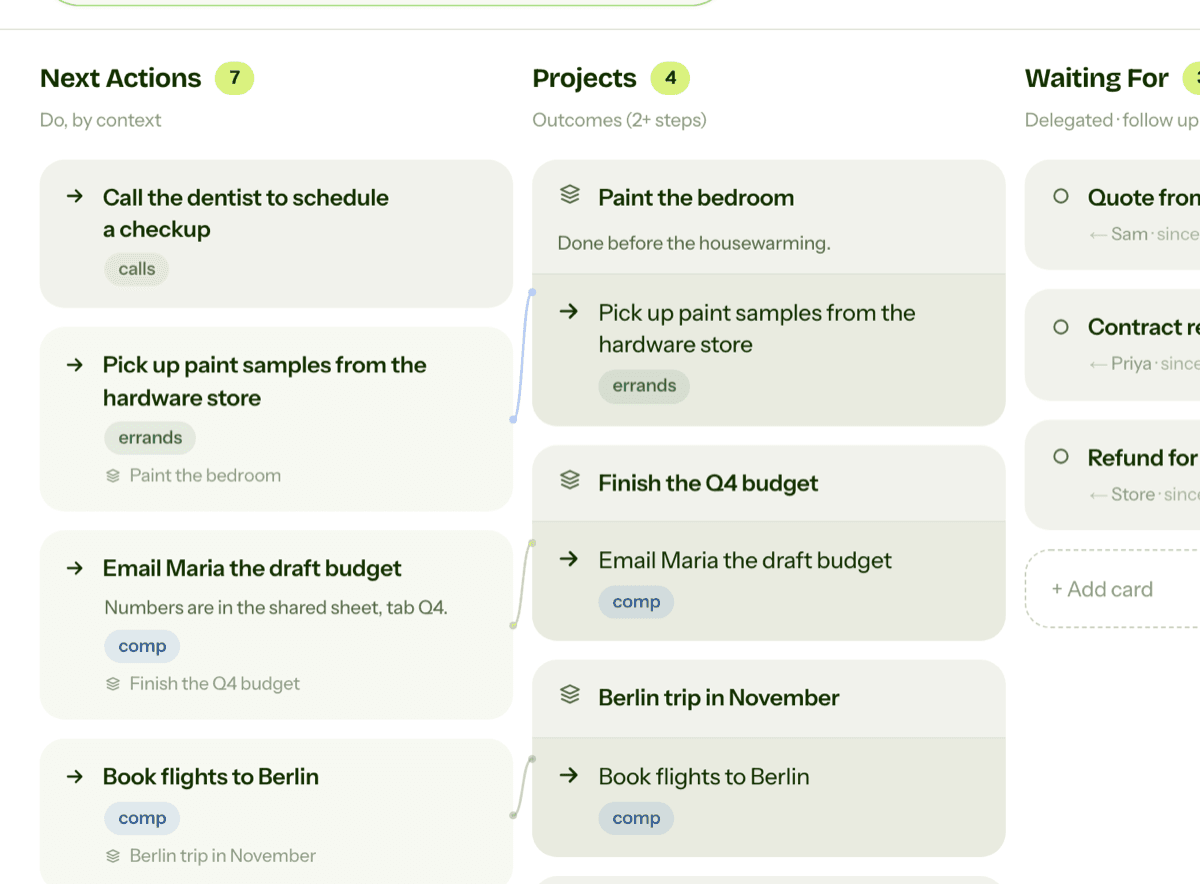
Everything above is real GTD, and plenty of people run it in To Do for years. I built GTD Brain for the parts that keep breaking: it is a board with the GTD lists built in (Inbox, Next Actions with contexts, Projects, Waiting For, Someday), a built-in agent that clarifies your inbox into next actions, and a guided weekly review that walks you through the whole board card by card. The same board is on the iPhone app, the Android app and the web, and you can talk to it from ChatGPT, Claude and other assistants through the assistant connections.
You sign in with an email code, no password. The yearly plan starts with a free month and you can cancel before it bills. If you have read this far, you already know how the lists work, so the setup takes about two minutes: sign in at gtdbrain.com and do your first brain dump into the inbox.
Questions people ask
Can you do GTD in Microsoft To Do?
Yes. Use one list as the Inbox (plus flagged email, which To Do collects automatically), a Next Actions group holding one list per context, a Projects list where each task is an outcome, a Waiting For list with the ask date in the title, and a Someday/Maybe list. Clarify the Inbox daily and review every list weekly. It works on a free Microsoft account.
How do you do GTD contexts in Microsoft To Do?
Two ways. The clean one is a group called Next Actions containing one list per context (@Calls, @Computer, @Errands, @Home), so each context is one tap away. The other is a hashtag in the task title, which To Do turns into a search link — searchable but not filterable, so it suits a single Next Actions list better than a large one.
Should GTD projects be tasks with Steps in Microsoft To Do?
No. Steps hide inside the parent task, so a project's actions never show up in a context list or in My Day, and a project with a next action looks identical to one without. Keep a project as one task in Projects that names the outcome, and put its first action as its own task in the right context list.
What can't Microsoft To Do do for GTD?
Contexts are a workaround: hashtags are searchable, not filterable, and a group of lists is not a filter. Nothing ties a project to its next action, so stalled projects are a manual weekly check. And there is no review flow — To Do is built for today (My Day, suggestions, reminders), not for the week or for the clarifying step in between.
Start free for a month →No charge for your first month · Cancel anytime