OmniFocus too complicated? A GTD app with no perspectives to set up
OmniFocus has custom perspectives you build yourself. A new GTD Brain account has the GTD lists, contexts and a weekly review ready, with screenshots.
On this page
If getting OmniFocus ready for GTD feels like a project of its own, this page shows the other way: a GTD app with nothing to set up. We cannot tell you how hard OmniFocus is for you. What we can do is show, with screenshots taken on a brand-new GTD Brain account, what you get before you have configured anything.
What OmniFocus asks you to build
OmniFocus has a feature called custom perspectives. According to the Omni Group’s own feature list (read on 24 November 2026), you create them yourself: you set rules that filter and group your projects and tags, and the result is a view you can open again. That is a strong tool for people who want exactly that control. It is also a decision list: which views do I need, and what are the rules for each?
We make no claim beyond that. If you use OmniFocus happily, keep using it. The rest of this page is for people who would rather skip the decisions and start capturing.
What a new GTD Brain account shows
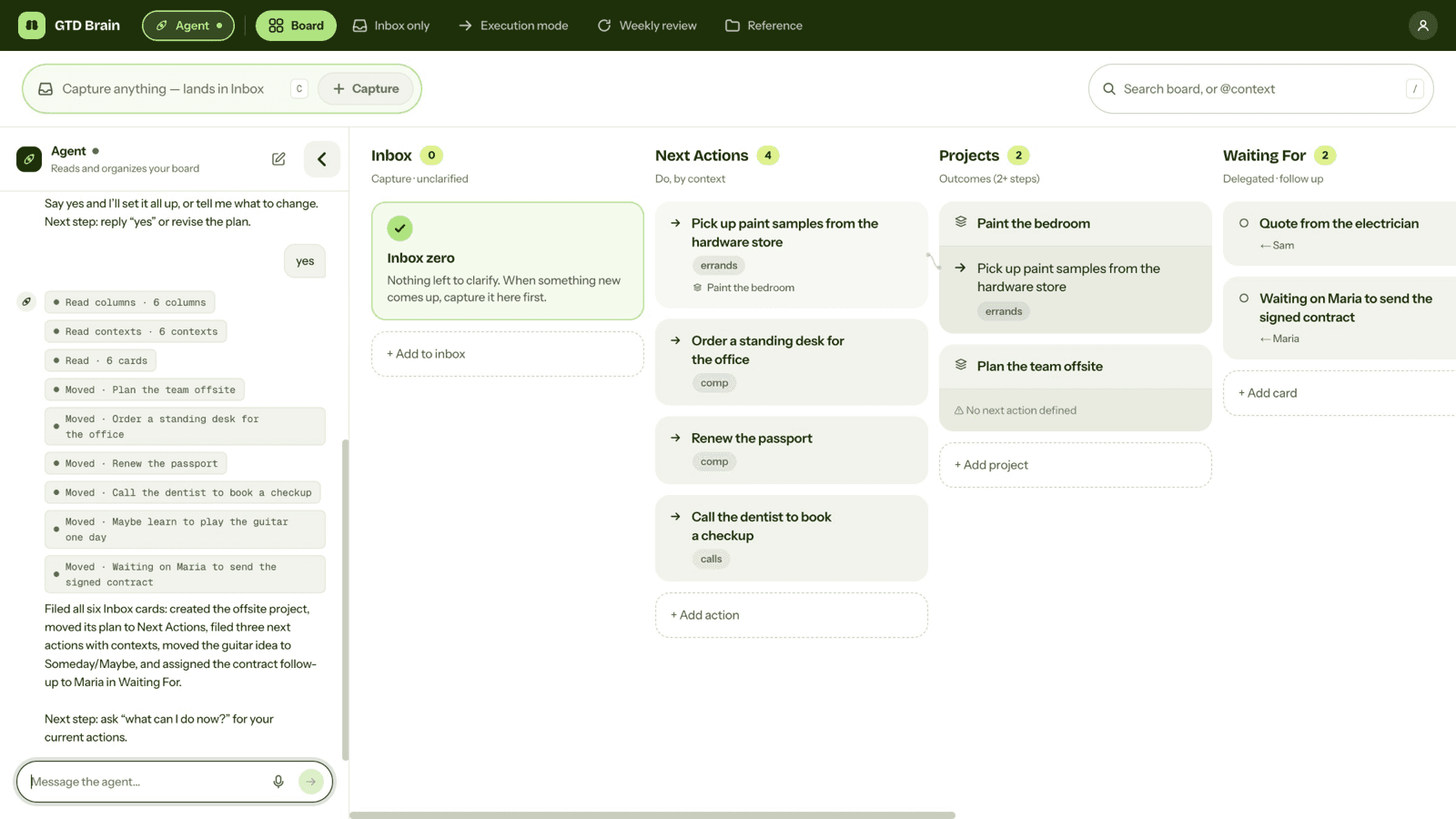
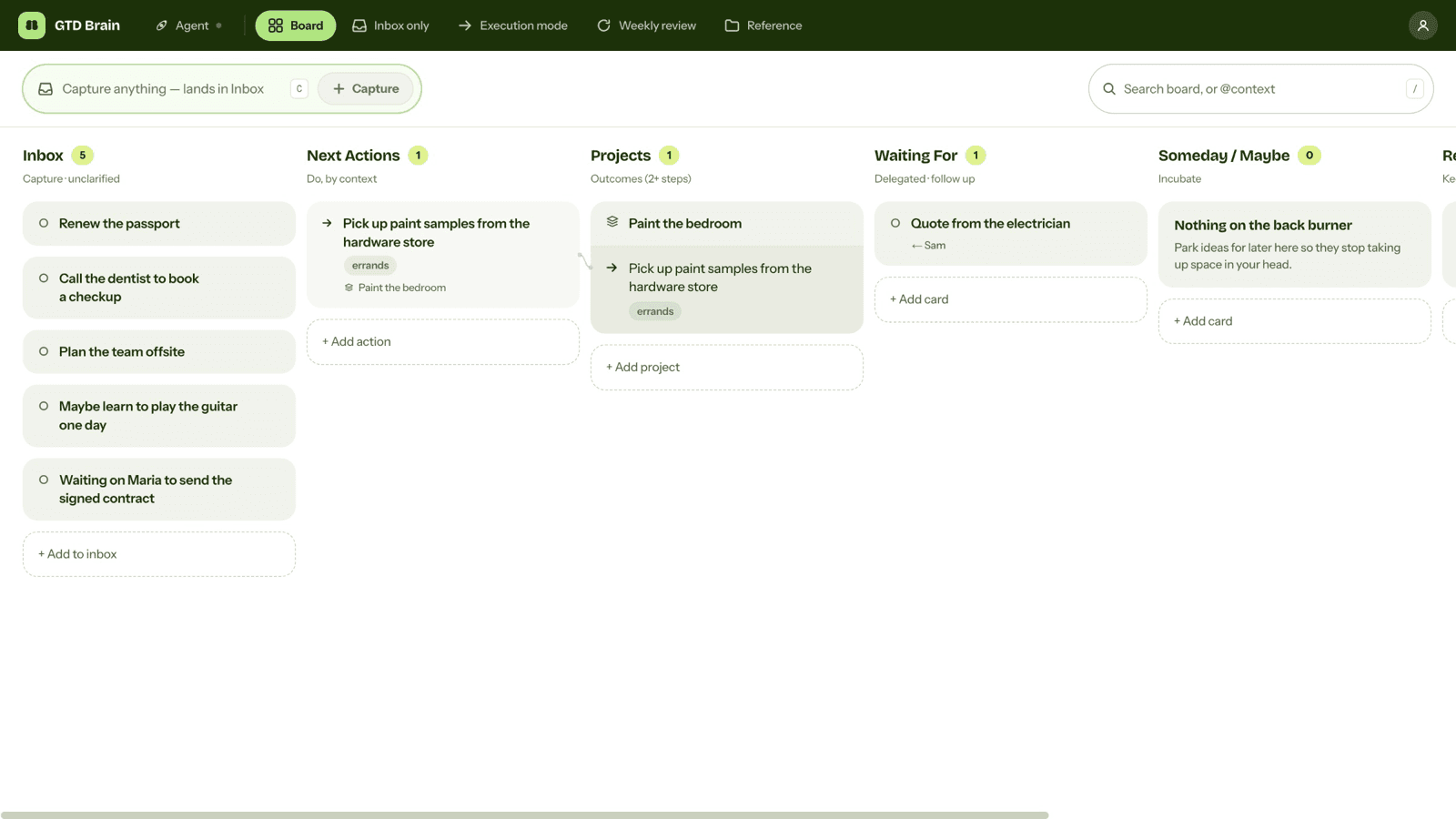
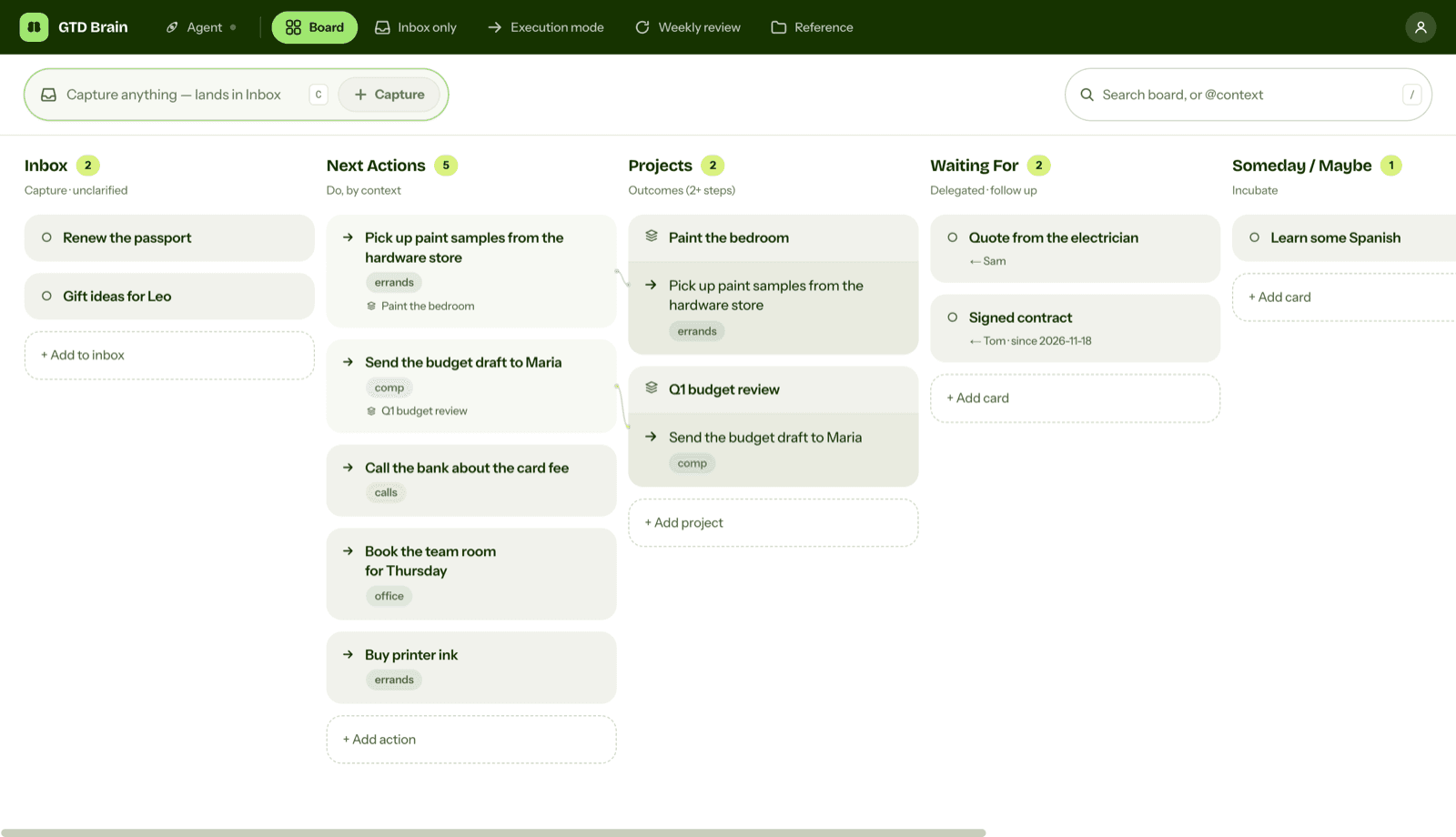
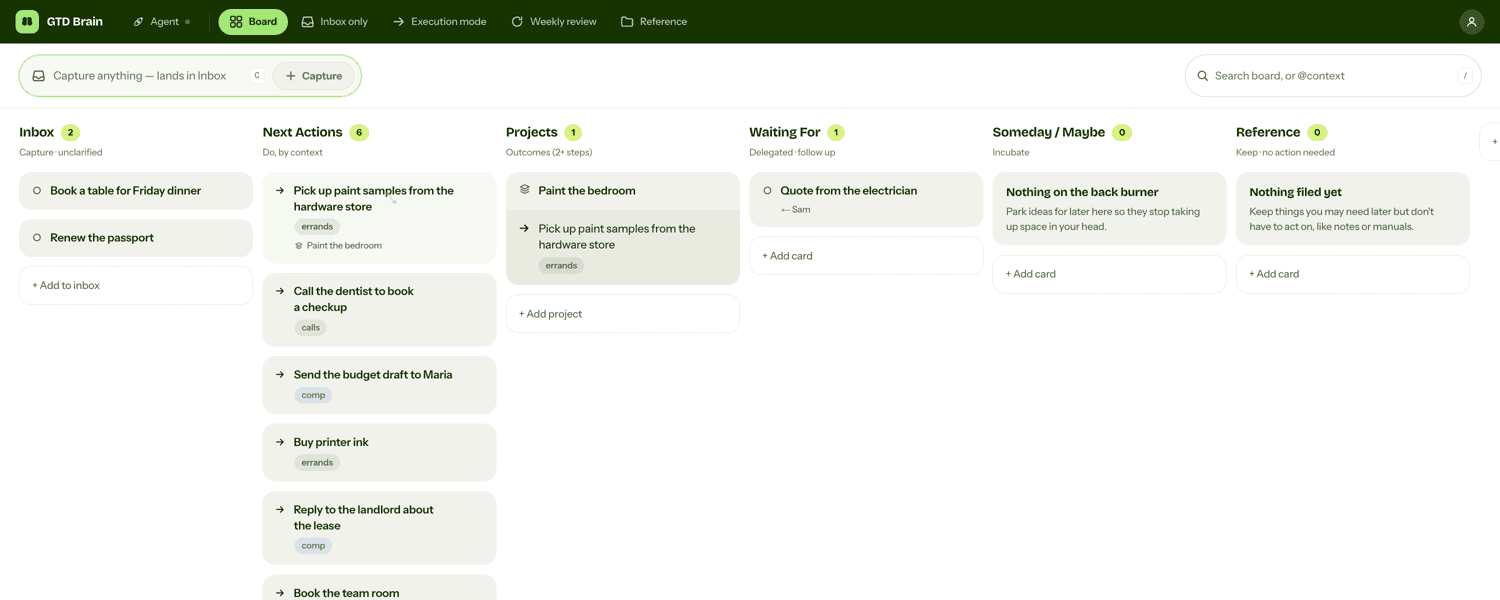
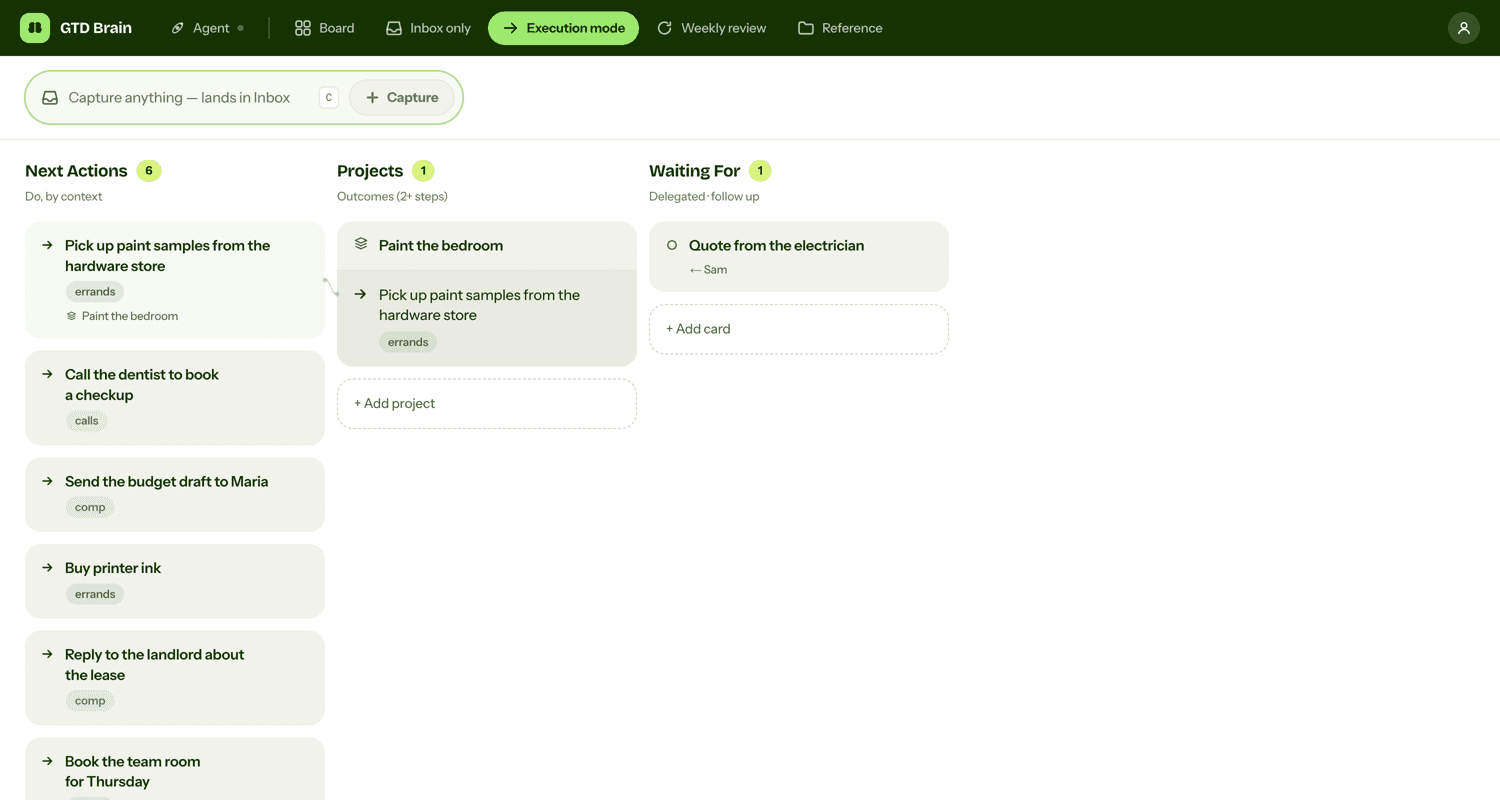
You sign in with an email code, with no password. The board opens with the GTD lists already there: Inbox, Next Actions, Projects, Waiting For, Someday/Maybe and Reference. Nothing to name, filter or save first. The cards in the screenshot are the starter cards a new account gets, plus a few we added.
Capture goes to one place
Type into the box at the top left and press Enter. The card lands in the Inbox. You do not pick a list, a context or a date at that moment, which is the point of an inbox: you decide later, when you clarify it.
Contexts are on the actions already
Next Actions carry a context chip: calls, comp (computer), errands, desk, home or office. You pick one when you clarify an action, from a short list that is already there. In Execution mode the board hides the Inbox, Someday/Maybe and Reference and keeps Next Actions, Projects and Waiting For, so you see only what you act on.
The weekly review is built in
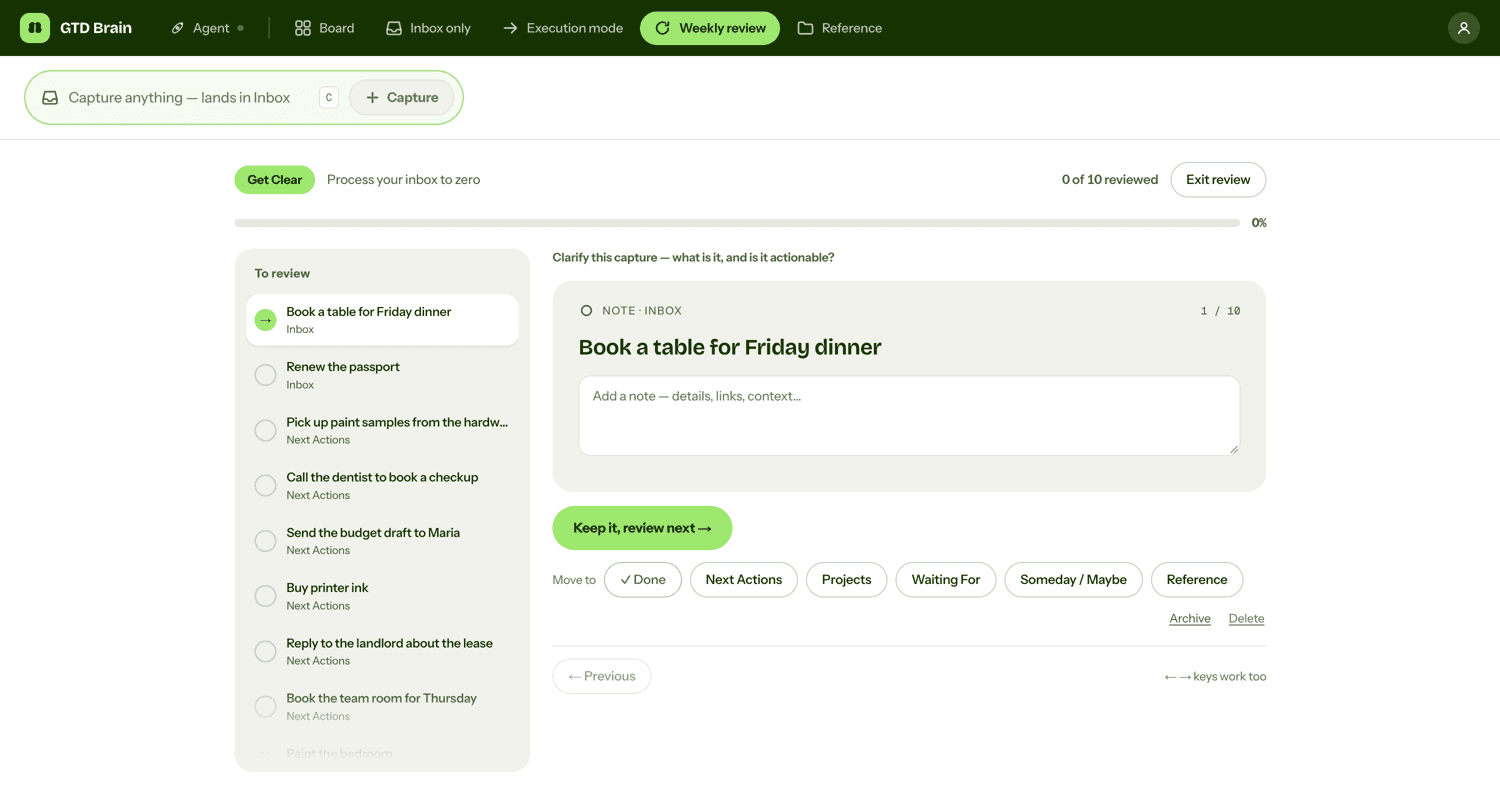
Open Weekly review and GTD Brain builds a queue from your board and steps through it one card at a time: a note field, a Keep it button, and Move to buttons for each list, plus Done, Archive and Delete. A progress bar shows how far you are. In our test board the queue had ten cards.
Where it works
GTD Brain runs on the web, in the iPhone app, in the Android app, in ChatGPT and in Claude, among others. It is one account and one board, so a card you capture on the web is the same card on your phone. The connections page lists the rest.
If you are moving from OmniFocus
GTD Brain does not import from OmniFocus. The simplest way across is a brain dump: write what is in your OmniFocus lists into the Inbox, then clarify each item into a next action, a project or a Waiting For card. It is also a good moment to drop what you no longer need. The Inbox guide and the next actions guide cover that step.
OmniFocus is a trademark of The Omni Group. GTD® and Getting Things Done® are trademarks of the David Allen Company. GTD Brain is made by Minosin AB - Sweden, and is not affiliated with or endorsed by either company.
Questions people ask
Is there a GTD app with nothing to set up?
GTD Brain is one option. A new account opens on the GTD lists already built (Inbox, Next Actions, Projects, Waiting For, Someday/Maybe, Reference), with contexts on the actions, an Execution mode and a guided weekly review. There are no views to define first.
What are OmniFocus perspectives?
According to the Omni Group's feature list, custom perspectives are views you create yourself by setting rules that filter and group projects and tags. GTD Brain has no equivalent to build: its lists and Execution mode are there from the first sign-in.
Can I import my tasks from OmniFocus into GTD Brain?
There is no import. The simplest way across is a brain dump: write what is in your OmniFocus lists into the GTD Brain Inbox, then clarify each item into a next action, a project or a Waiting For card.
Start free for a month →No charge for your first month · Cancel anytime